WR3600
Overview
- Check the package content.
- View the router's appearance—front and back.
- View the interfaces layout and description.
- Check the LED status and indication.
Connect
- Position the router properly before connection.
- Finish the hardware connection of the router.
Quick Setup
- Set up the router to the Internet with web-based wizard.
- Set up the router to the Internet via Cudy App.
Manage
I. System Status
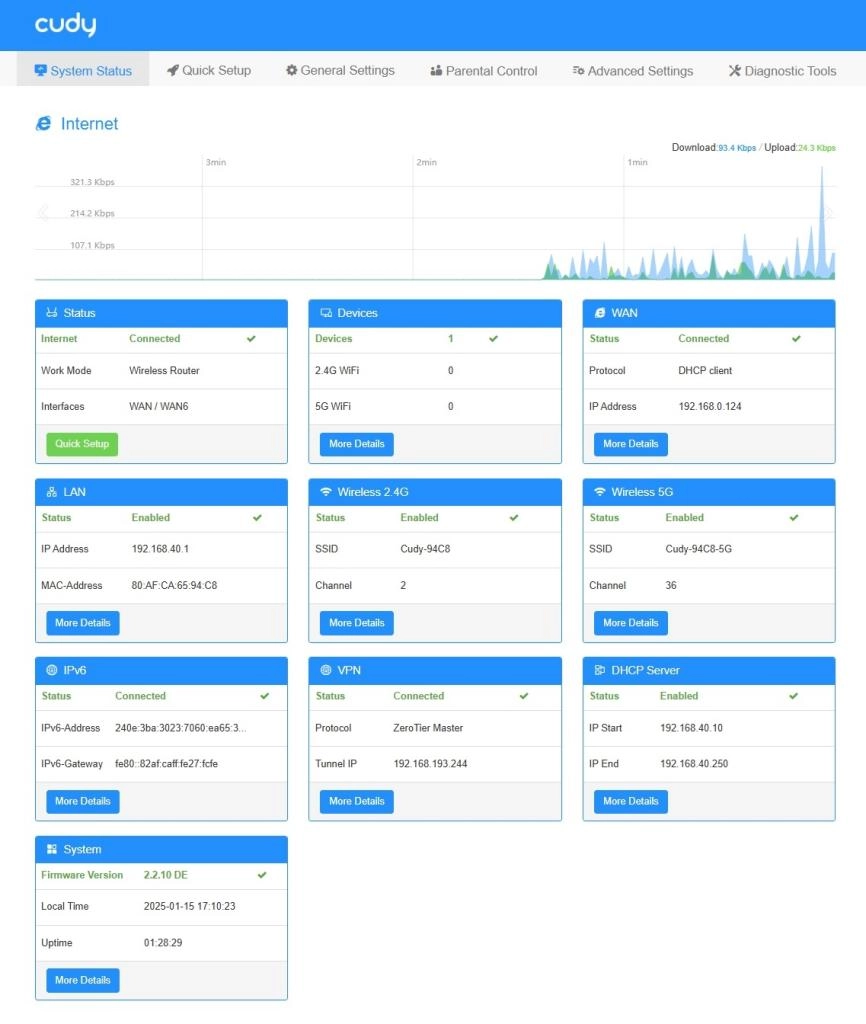
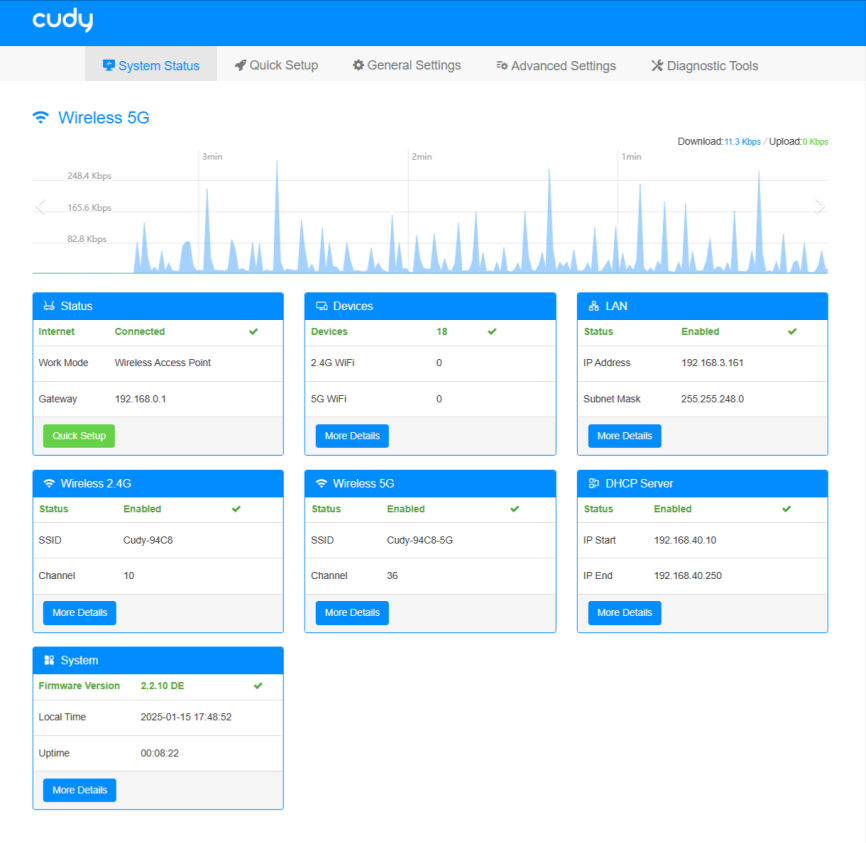
On the System Status (in Wireless Router Mode or in Wireless Access Point Mode) page, you can check the status of the router system, including:
-
Device shows the number of devices connected to this Router, via Ethernet cable or 2.4G WiFi or 5G WiFi. Click More Details to know more information about these devices or configure the settings.
-
WAN shows the WAN port connection status. Click More Details to know more information about it or make changes on Settings page.
-
LAN shows the connected LAN port status. Click More Details to know more information about it or make changes.
-
Wireless 2.4G/5G shows the Wireless 2.4G/5G status. Click More Details to know more information about it or make changes on Settings page.
-
IPv6 shows IPv6 connection status. Click More Details to know more information about it or make changes on Settings page.
-
VPN shows VPN connection status. Click More Details to know more information about it or make changes on Settings page.
-
DHCP shows the DHCP Server status. Click More Details to know more information about it or make changes on Settings page.
-
System shows the System status. Click More Details to view more information about it or make changes on Settings page.
II. General Settings
- WAN Mode: is to set your Internet connection. Select your Internet connection type from the drop-down list of Protocol. Follow the instructions on the page to complete the configuration.
- Wireless: is to customize the router's wireless settings, including SSID and password, mode, channel, channel width and transmit power, and so on.
- VPN: namely, Virtual Private Network, helps you access Internet resources remotely, securely, and privately through tunneling technology. When you access the Internet, VPN encrypts your personal information and hides your IP address from the public. For VPN users, it looks like the devices are directly connected.
- Captive Portal: allows you to design a portal page for network access verification. Customers are directed to view an advertisement or accept set terms before being granted Internet access. In this way, it offers unique marketing opportunities for small businesses to improve brand awareness and deliver marketing messages.
- Firmware: Update the router's firmware to be the latest version.
III. Advanced Settings
- LAN: Modify the router's LAN IP address, when necessary.
- Guest Network: Create a guest network without disturbing the main network's security and privacy.
- DHCP Server: Specify the IP address for client devices by the router as a DHCP Server.
- IPv6: Set up an IPv6 Connection.
- IGMP: Manage and optimize multicast traffic for the client devices, like IPTV.
- IPTV/VLAN: Enjoy IPTV or VoIP service.
- QoS: Prioritize connection of specific devices for a certain duration.
- Custom DNS: Customize a DNS server to be resolved through for DNS names.
- DDNS: Map a domain name to the dynamic IP address of a network device.
- Static Routing: Manually configure routings for data forwarding.
- Port Forwards: Set up public services on your local network with higher security.
- Port Trigger: Specify a triggering port and its corresponding external ports.
- DMZ: Disable DMZ unless necessary.
- Online Detection: Ensure your network always online and operational.
- TTL: Set the maximum time for packets to survive in the network.
- Wake on LAN: Allow a computer to be turned on or awakened by a network message.
- UPnP: Allow applications or host devices to automatically find the front-end NAT device.
- Firewall: Monitor and control incoming and outgoing network traffic based on predetermined security rules.
- MAC Filter: Prevent unauthorized devices with certain MAC address from accessing the network.
- IP Filter: Block or allow traffic to your network or system based on the IP addresses.
- Domain Filter: Control or limit access to specific websites or Internet services by filtering domain name requests.
- IP/MAC Binding: Bind network device's IP address to its MAC address.
- WPS: Set up a security-protected Wi-Fi connection without sharing/entering credentials.
- WiFi Schedule: Turn on/off the router's wireless network automatically at a specific time.
- ALG: Inspect and modify application-layer data in network traffic to allow it to pass through firewalls and other security devices more easily.
- System Time: Configure the router's system time, necessary for some time-based functions.
- Firmware: Upgrade the firmware to the latest version
- Backup/Restore: Backup the configuration file or restore it
- Administration: Access and manage the router from the local or remote devices
- Admin Account: Change the router's login password
- Language: Customize the router's web management language
- Timed Reboot: Schedule for the router rebooting
- Reboot: Reboot the router for the settings or changes to take effect
- Reset: Restore the router to its factory default settings
- LED Control: Control the router's LED
- TR069: Configure the router's TR069 (CPE WAN Management)
IV. Parental Control
- Parental Control helps to set up unique restrictions on Internet access for each member of your family via Parental Control feature. You can block inappropriate content, set daily limits for the total time spent online and restrict Internet access to certain time of the day, etc. This feature only works in Wireless router mode.
V. Diagnostic Tools
- Diagnosis: The diagnosis result will indicate the status of Internet, Wireless, Devices, Services and System. You can click Download to reserve the diagnosis bin file.
- PING: Used to test the connectivity between the router and the tested host, and measure the round-trip time.
- TRACEROUTE: Used to test the route (path) your router has passed to reach the tested host, and measure transit delays of packets across an Internet Protocol network.
- NSLOOKUP: Check if the DNS IP address of the WAN can work normally.
- System Log: Track all the router behaviors. When the router does not work normally, download the system log and send it to our Technical Support for troubleshooting.