System Status
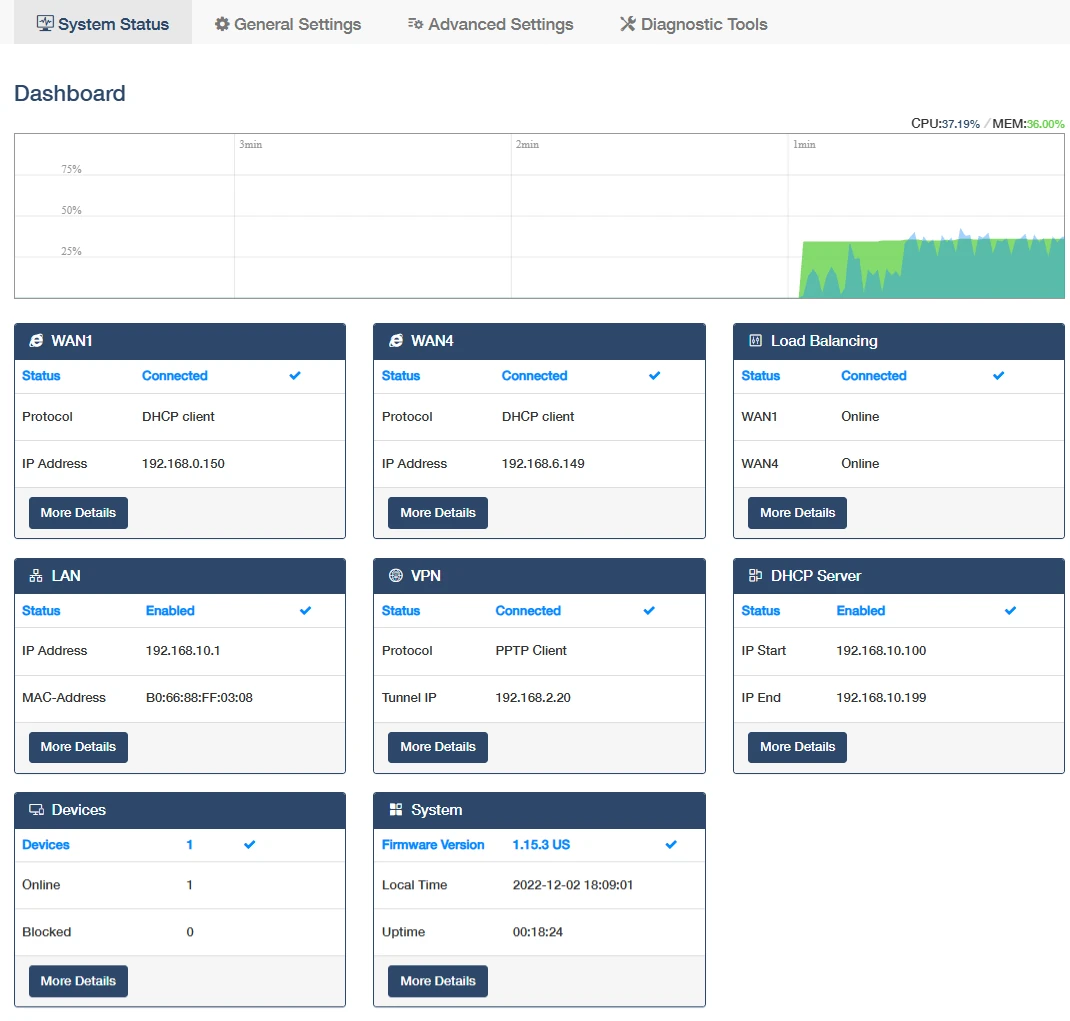
On the System Status page, you can check the status of the VPN router, including WAN1, WAN4, Load Balancing, LAN, VPN, DHCP Server, Devices and System.
WAN1
shows the WAN1 port connection status, Protocol and IP address. Click More Details to know more information about it or make changes on Settings page.

WAN4
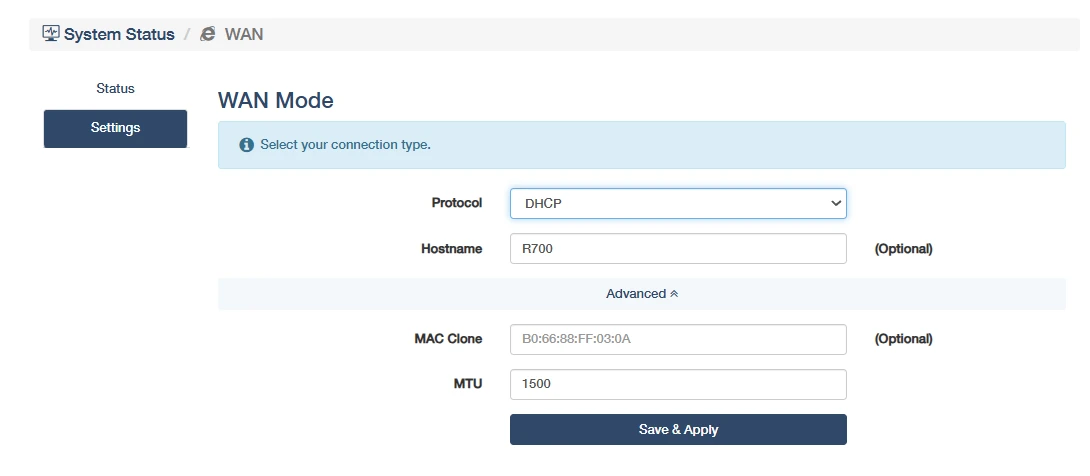
shows the WAN4 port connection status, Protocol and IP address. Click More Details to know more information about it or make changes on Settings page.

Load Balancing
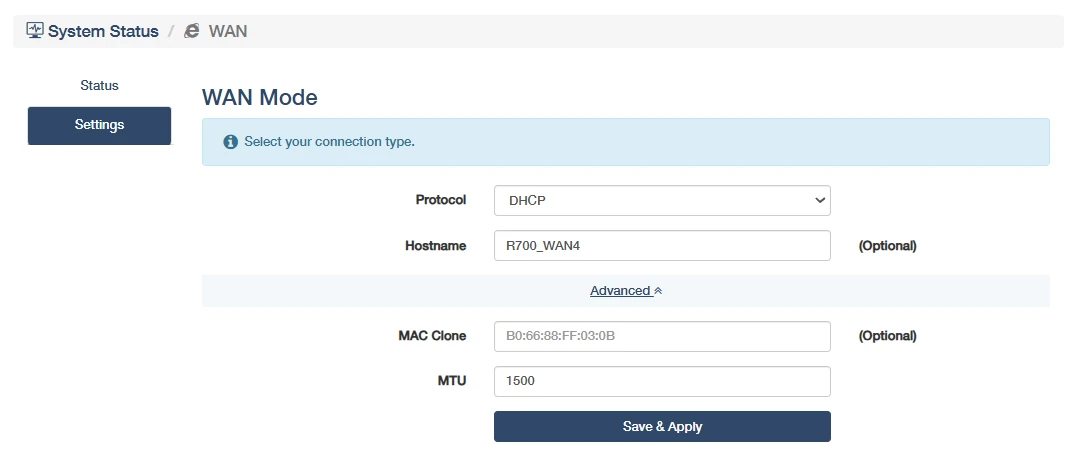
shows the load balancing status, WAN ports online/offline status. Click More Details to know more information about it or make changes on Settings page.

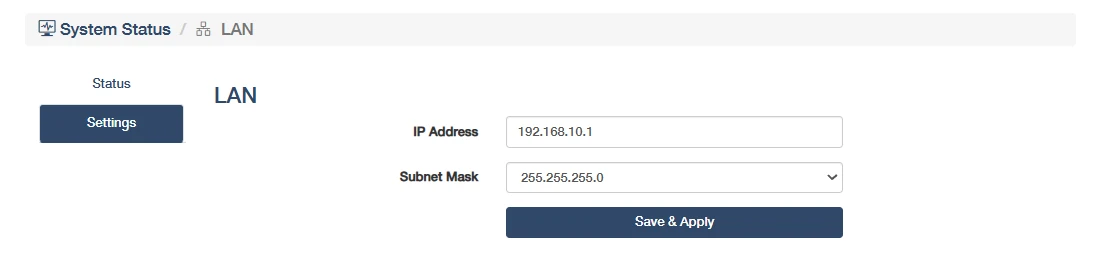
LAN
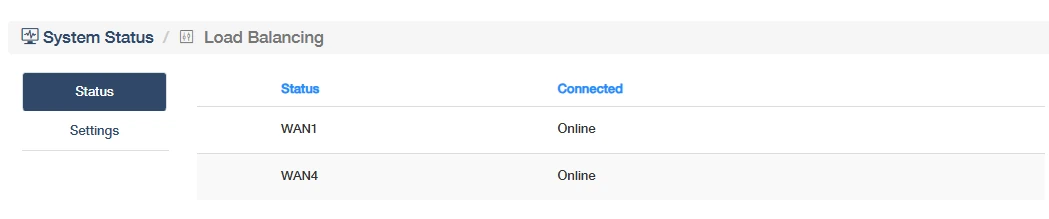
shows the connected LAN port status, IP address and MAC address. Click More Details to know more information about it or make changes.

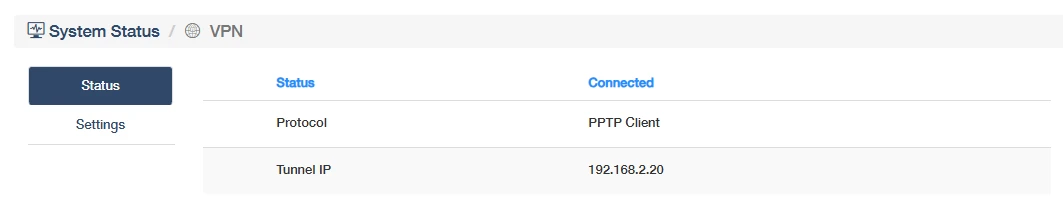
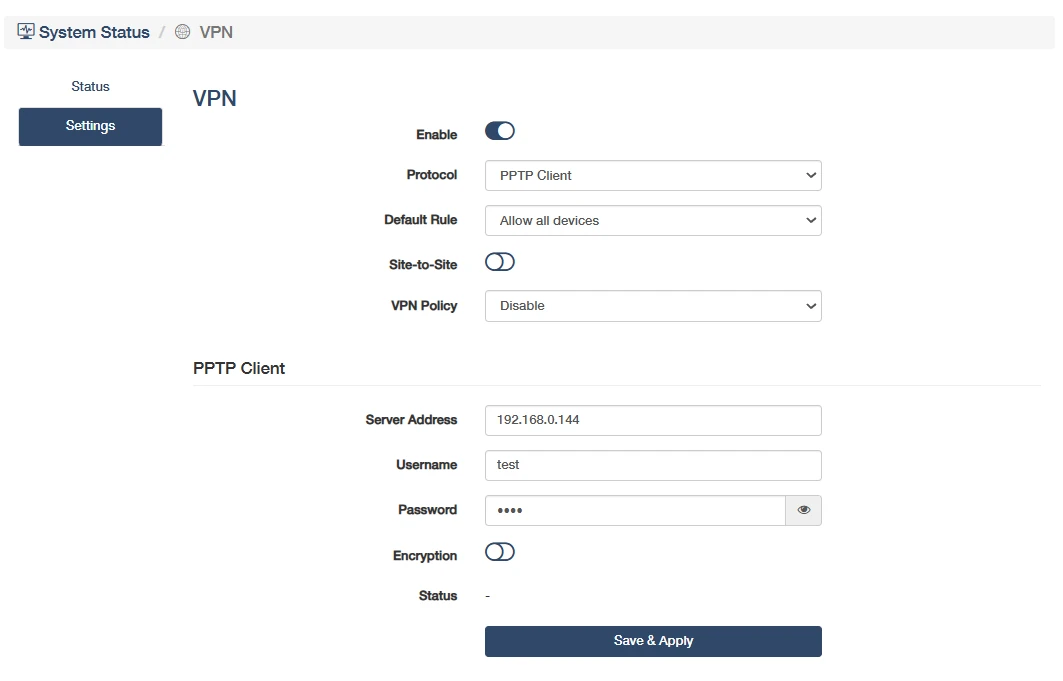
VPN
shows VPN connection status, protocol and tunnel IP. Click More Details to know more information about it or make changes on Settings page.
DHCP Server
shows the DHCP Server status, start IP address and end IP address. Click More Details to know more information about it or make changes on Settings page.


Devices
shows the number of devices connected to this Mesh router, via Ethernet cable or 2.4G WiFi or 5G WiFi. Click More Details to know more information about these devices or configure the settings.


- Internet: Click to enable/disable the Internet for the devices.
- VPN: Click to enable/disable VPN for the devices.
- Operation: Click to pop up the editing page as below, where you can customize the device name and limit the download/upload rate.
System
shows the System information including firmware version, local time and uptime. Click More Details to view more information about it or make changes on Settings page.
-
Status shows the Router info about firmware version, model, hardware version, local time and uptime.

-
ARP lists the connected devices' IP address with its bound MAC address, Hostname and Interfaces.

-
Active IP Routes table contains a list of routes to network destinations associated with and known by the Router.

-
System Log tracks all the Router behaviors. It is used for technical support to diagnose and troubleshoot for the Router. It is also available on Diagnostic Tools -> System Log page.

- Update: Click to refresh the system log.
- Clear: Click to erase all the system log up till now.
- Download: Click to download the system log for technical support.