Tools
Note
Images of GS1024E are for reference only; details may vary by model.
Cable Diagnostics
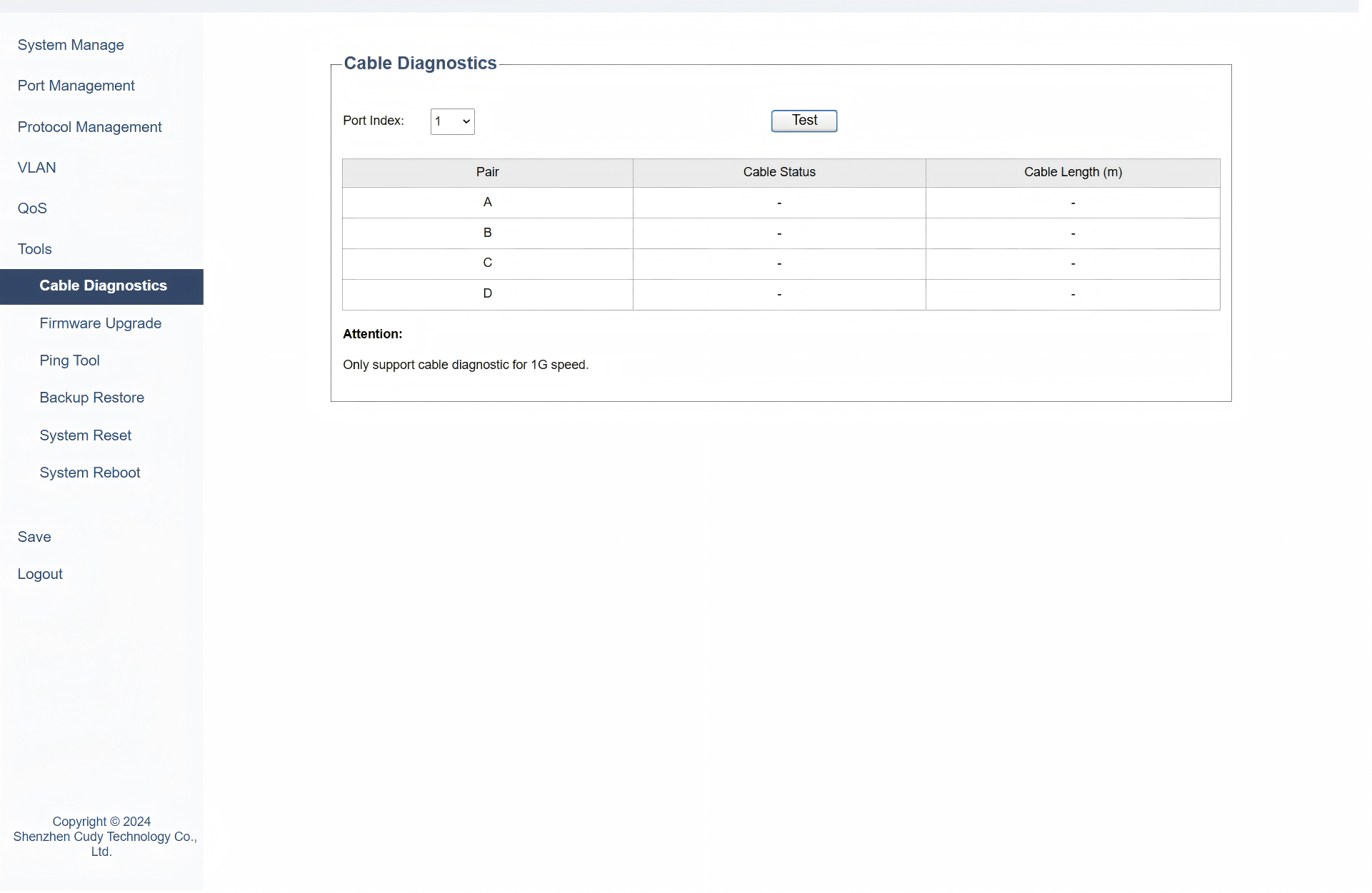
On the Tools >> Cable Diagnostics page, you can test and assess the condition of the cables connected to specific ports. Please follow the steps:
1) Select from the drop-down list of Port Index a specific port on the switch to be tested.
2) Click Test to start the cable diagnostic test.
3) View the test results in the table below.
- Pair: Displays the tested wire pair in the cable.
- Cable Status: Displays the condition of the cable.
- Cable Length: Displays the length of the cable in meters.
Note
Only support cable diagnostic for 1G speed.
Firmware Upgrade
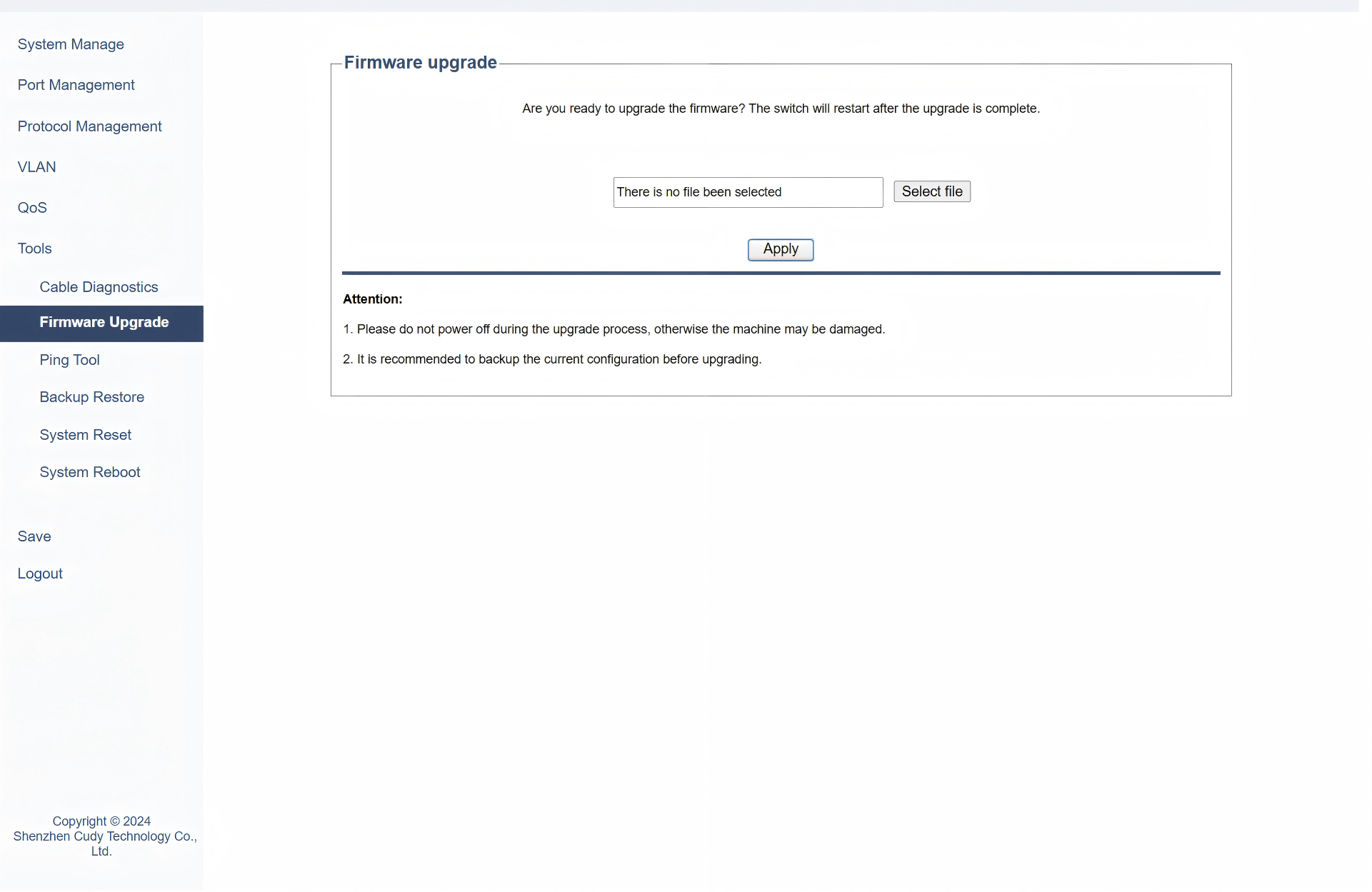
On the Tools >> Firmware Upgrade page, you can update the switch to its latest firmware, enhancing functionality, fixing bugs, or improving security. Please follow the steps:
1) Click Select file to locate and upload the firmware file to be upgraded.
2) Click Apply to start the firmware upgrading process.
Note
- Do not power off during the process, otherwise the machine may be damaged.
- It is recommended to backup the current configuration before upgrading.
Ping Tool
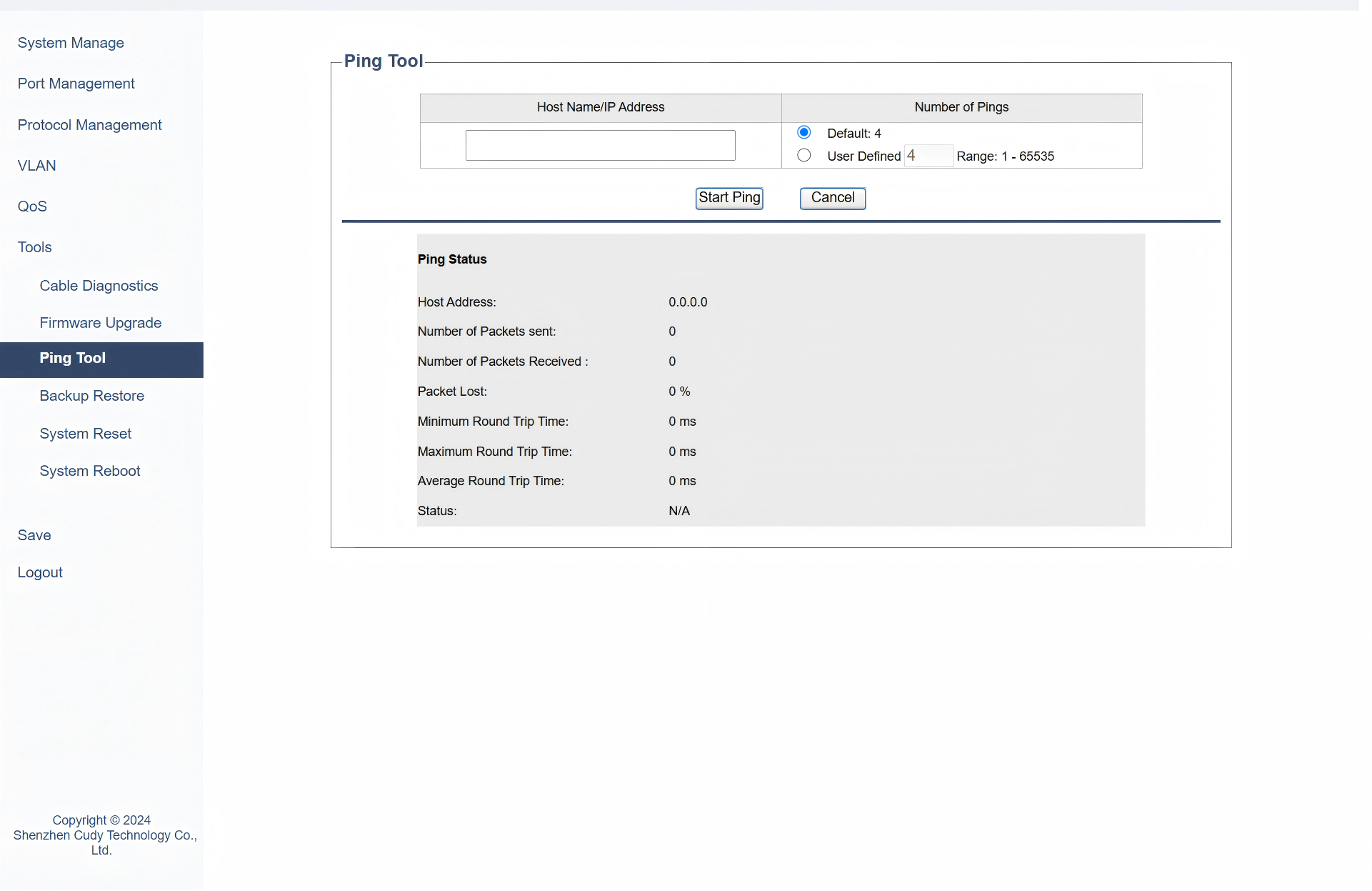
On the Tools >> Ping Tool page, you can test connectivity to another device by sending ICMP echo requests and measuring the response time. Please follow the steps:
1) Enter the destination address or hostname to which the ping packets will be sent in the Host Name/IP Address field.
2) Set a number (between 1 to 65535, default 4) of ICMP echo requests to be sent to the specified host in the Number of Pings field.
3) Click Start Ping to start the Ping process, during which you may click to stop or clear it.
4) View the Ping result including such information as:
- Host Address: Displays the IP address of the host being pinged.
- Number of Packets sent: Displays the total number of ping packets sent to the host.
- Number of Packets Received: Displays the number of ping packets successfully received from the host.
- Packet Lost: Displays the number of ping packets that were not received, indicating potential network issues.
- Minimum Round Trip Time: Displays the shortest time taken for a ping packet to travel to the host and back.
- Maximum Round Trip Time: Displays the longest time taken for a ping packet to travel to the host and back.
- Average Round Trip Time: Displays the average time taken for all ping packets to travel to the host and back.
- Status: Indicates the overall result of the ping test:Ping in Progress, Ping Failed or Success.
Backup Restore
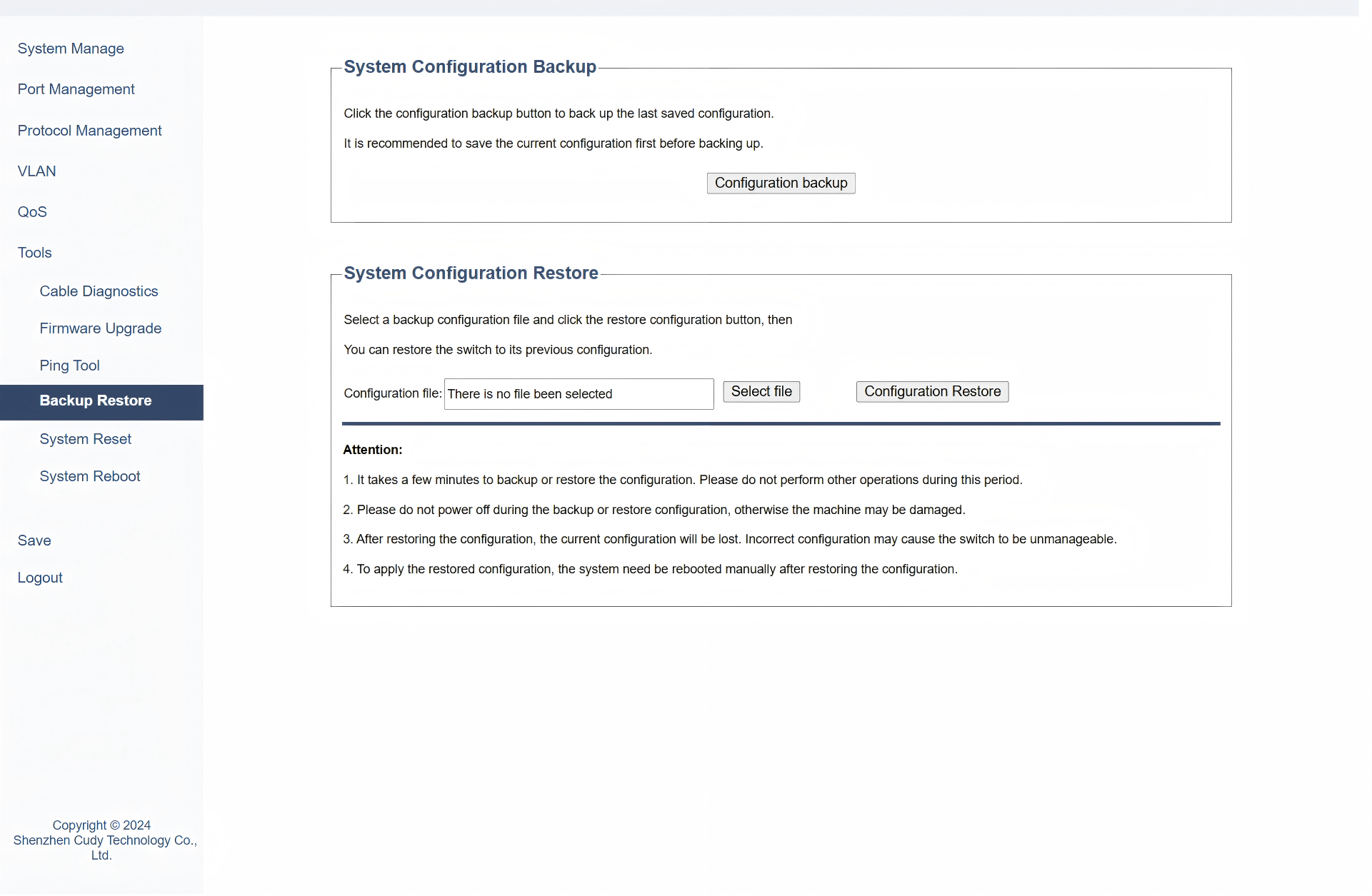
On the Tools >> Backup Restore page, you can save or retrieve switch configuration settings, allowing you to back up current settings or restore previous ones.
-
To backup the System Configuration, just click Configuration backup to download and backup the configuration file.
-
To restore the System Configuration, click Select File to locate and upload the configuration file and then click Configuration Restore to start the restore process.
System Reset
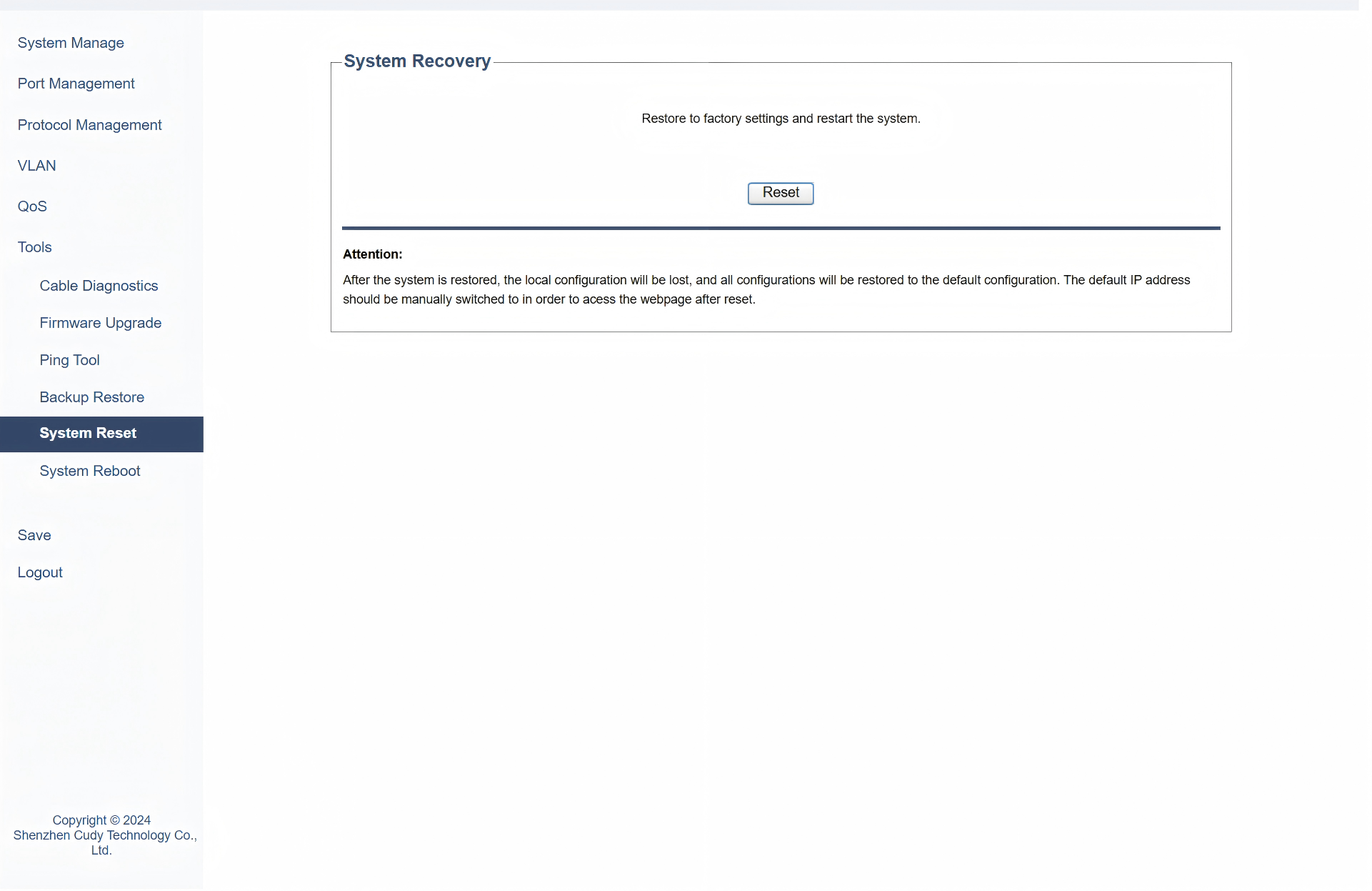
On the Tools >> System Reset page, you can reset the switch to its factory default settings, erasing all custom configurations.
Easily just click Reset to restore the factory settings and restart the system. It may take some moments, so please wait patiently.
System Reboot
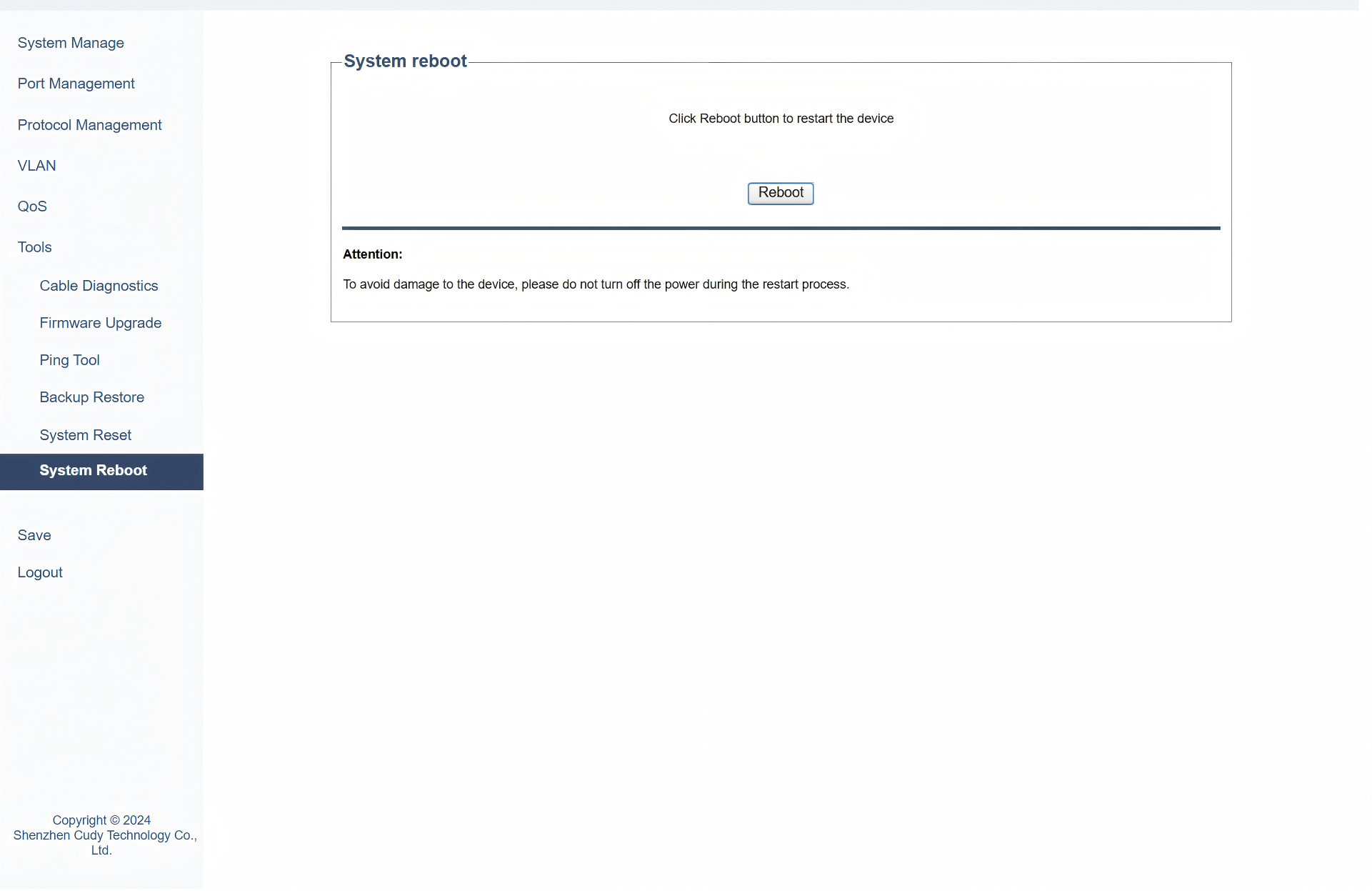
On the Tools >> System Reboot page, you can restart the switch, reload the current firmware and configuration without erasing any settings.
Easily just click Reboot to restart the switch.
Note
To avoid damage to the device, please do not turn off the power during the restart process.