System Manage
Note
Images of GS1024E are for reference only; details may vary by model.
System Info
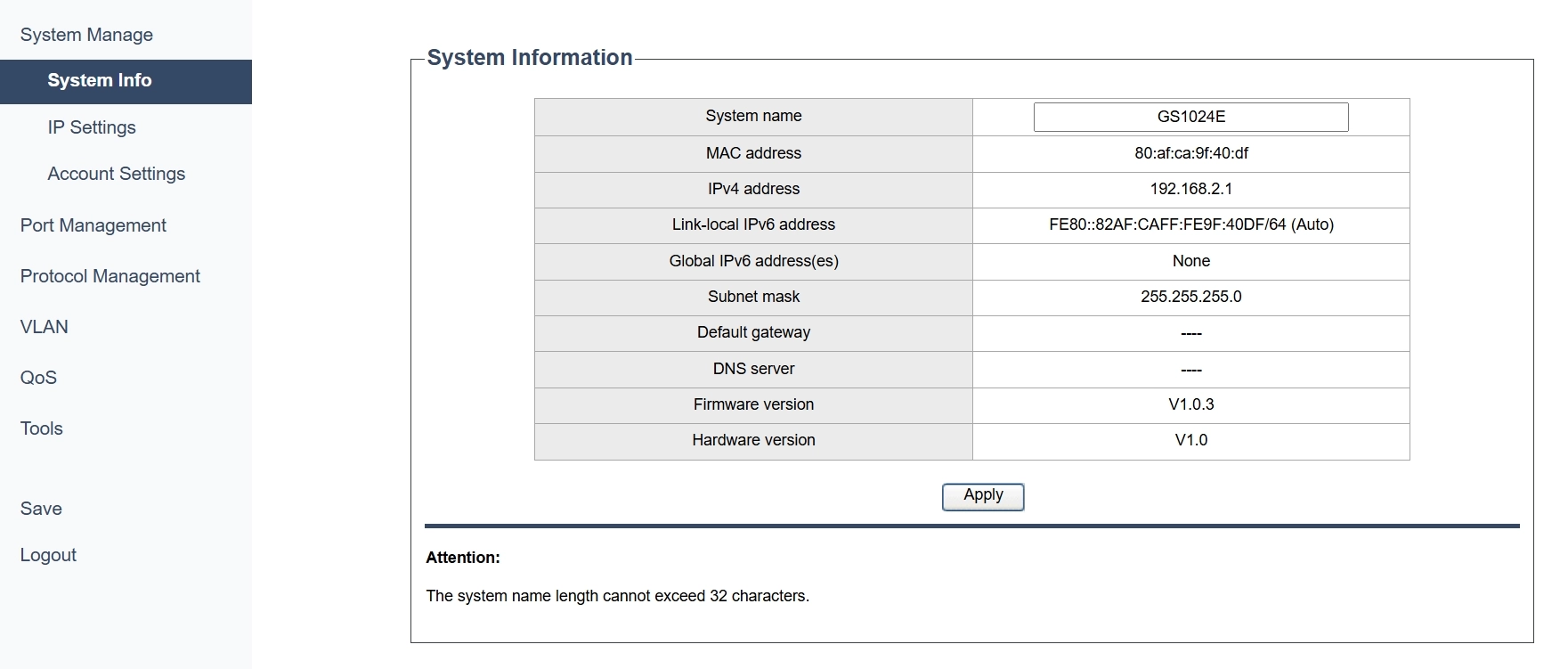
On the System Manage >> System Info page, you may:
-
View the basic system information about the Switch:
- System name: The name assigned to the switch for identification purposes. By default, it displays the product model.
- MAC address: A unique identifier assigned to network interfaces for communications on the physical network segment.
- IPv4 address: The IP address assigned to the switch using the IPv4 protocol.
- Link-local IPv6 address: IPv6 address used for communication within the local network segment.
- Global IPv6 address(es): IPv6 addresses assigned to the switch for global communication over the internet.
- Subnet mask: A mask used to divide an IP address into two parts: the network part and the host part.
- Default gateway: The IP address of the router that the switch uses to forward packets to other networks.
- DNS server: The IP address of the server that translates domain names into IP addresses.
- Firmware version: The version of the software embedded in the switch's hardware.
- Hardware version: The version of the physical components of the switch.
-
Customize a new device name for the switch:
- In the System name field, enter a system name whose length doesn't exceed 32 characters, and then click Apply to save and apply your changes or settings.
IP Settings
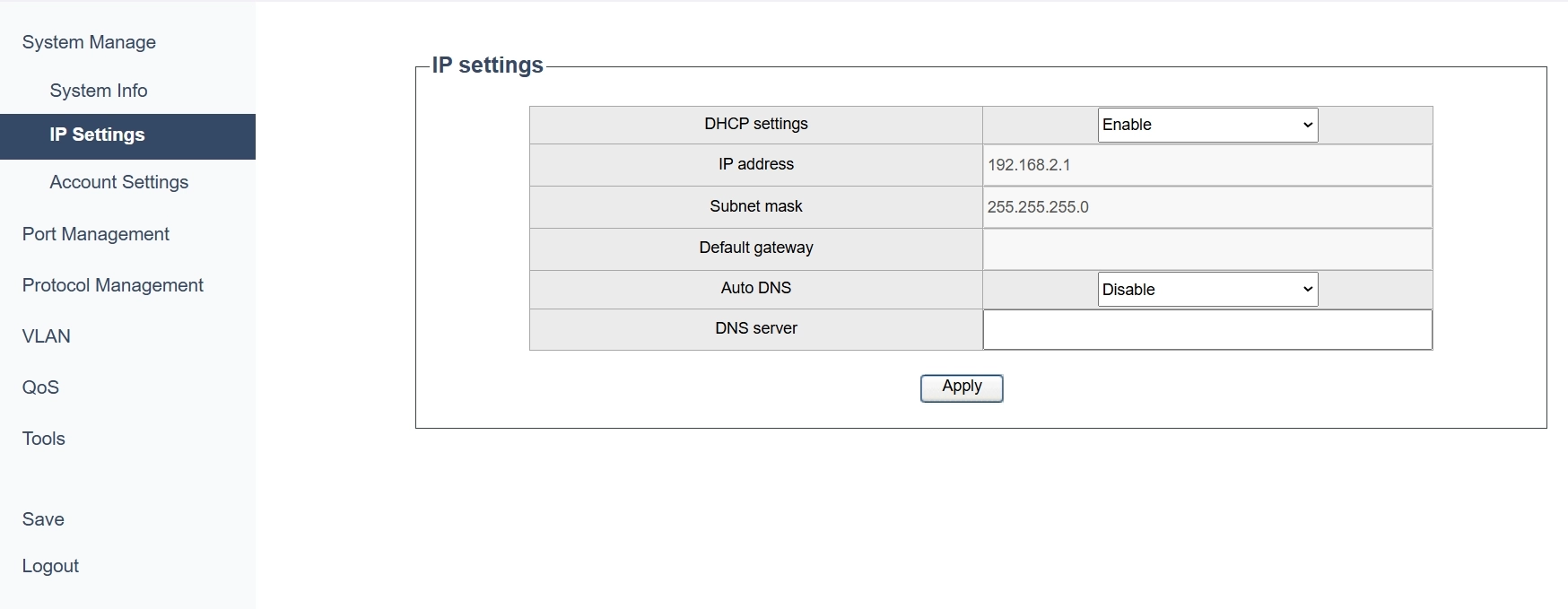
On the System Manage >> IP Settings page, you may:
Configure the switch's system IP address Using DHCP.
1) Select DHCP Settings as Enable from the drop-down list.
2) Select Auto DNS from the drop-down list accordingly.
- If Enable is selected, the switch will obtain the DNS server’s IP address from the DHCP Server.
- If Disable is selected, specify a DNS server’s IP address for the switch.
3) Click Apply to save and apply your changes or settings.
Configure the switch's system IP address manually.
1) Select DHCP Settings as Disable from the drop-down list.
2) Specify the following parameters.
- IP address: The IP address assigned to the device. It is 192.168.2.1 by default.
- Subnet mask: A mask used to divide an IP address into two parts-the network part and the host part. It is 255.255.255.0 by default.
- Default gateway: The IP address of the router that the device uses to forward packets to other networks.
- DNS server: The IP address of the server that translates domain names into IP addresses.
3) Click Apply to save and apply your changes or settings.
Account Settings
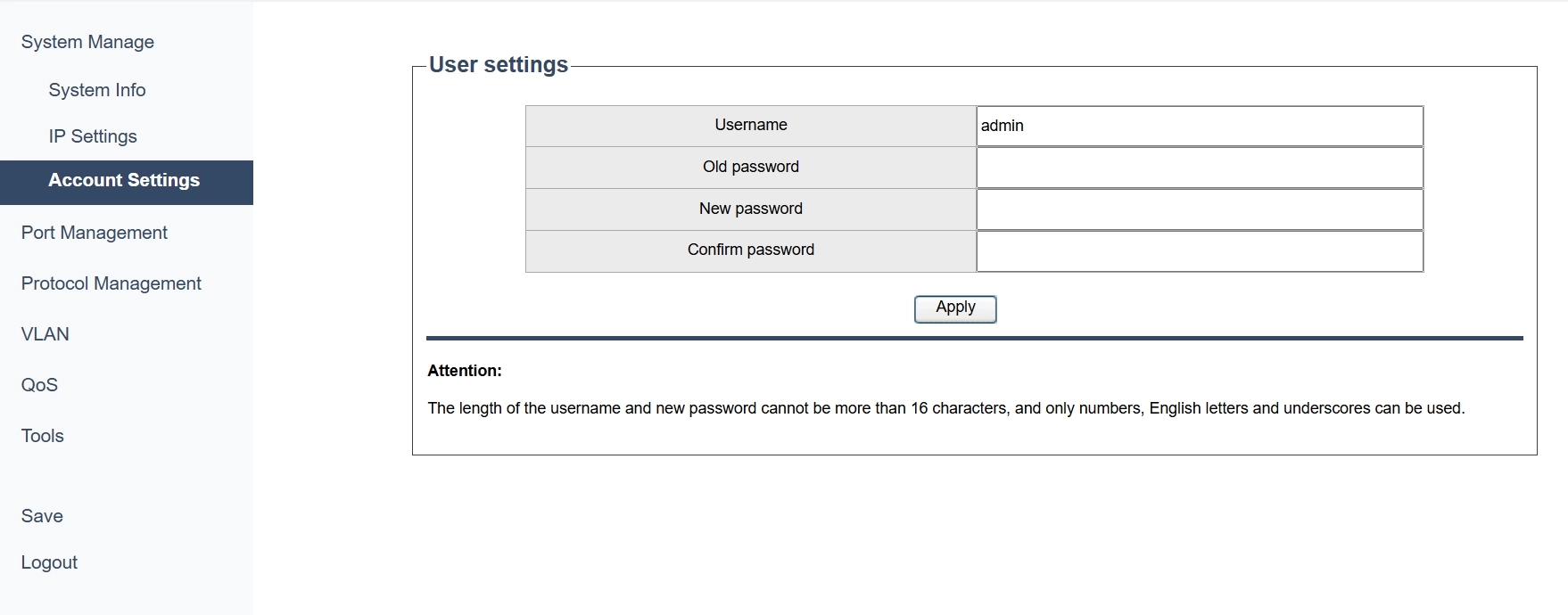
On the System Manage >> Account Settings page, you can configure the user account (administrator’s username and password) in order to refuse illegal users:
1) Specify the username, enter the old password, specify a new password and confirm the new password.
- Username: Create a user name for login. If your user name fails to meet the requirement, check the prompt information.
- Old password: Enter the current password for the user account.
- New password: Specify a new password for login. If your password fails to meet the requirement, check the prompt information.
- Confirm password: Correctly re-enter the new password for confirmation.
2) Click Apply to save and apply your changes or settings.
Note
The length of the username and new password cannot be more than 16 characters, and ony numbers, English letters and underscores can be used.