General Settings
Note
RE3600 is used as an example in this guide. Refer to your actual product for more details.
Wireless 2.4G
On the System Status -> Wireless 2.4G -> Settings or General Settings -> Wireless 2.4G, you may customize the range extender's 2.4GHz wireless settings, including SSID and password, mode, transmit power, and so on.
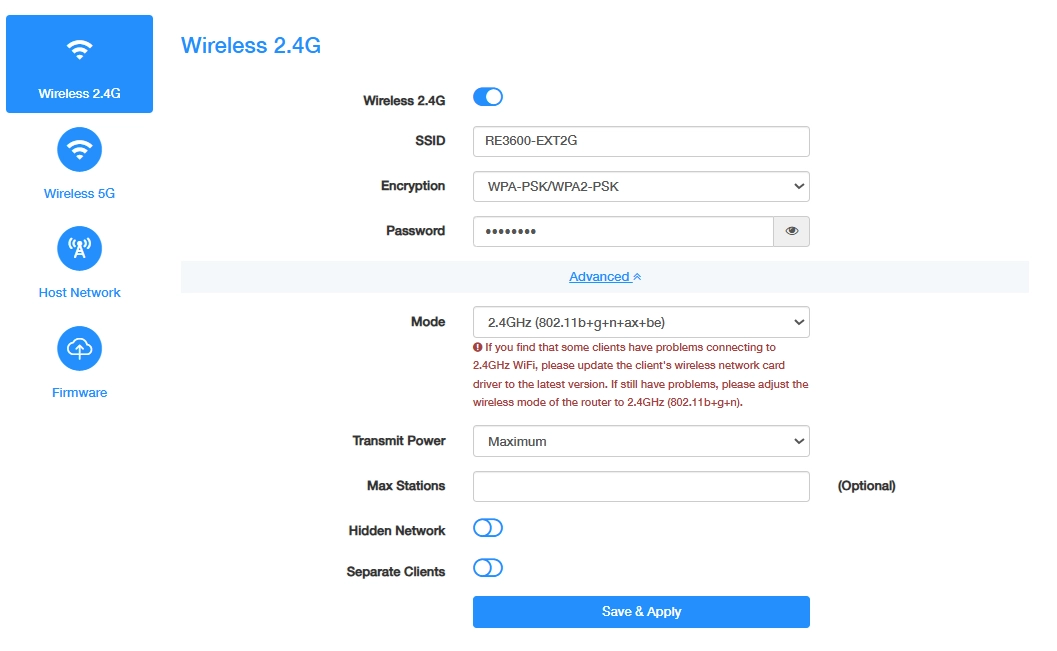
- Enable Wireless 2.4G;
- Customize your SSID (wireless network name);
- Select a strong Encryption and create a secure Password for your wireless network. Click Save & Apply to save these basic settings, or Advanced to continue with more and advanced settings.
- Select a proper Mode and Transmit Power.
- (Optional) Enter the maximum number of devices you want to allow on your network in the Max Stations field.
- Enable Hidden Network, if you don’t want your SSID to display automatically. Then you need to manually join the network.
- (If any) Enable Separate Clients to isolate the wireless clients from each other.
- Click Save & Apply to apply your new settings.
Wireless 5G
On the System Status -> Wireless 5G -> Settings or General Settings -> Wireless 5G, you may customize the range extender's 5GHz wireless settings, including SSID and password, mode, transmit power, and so on.
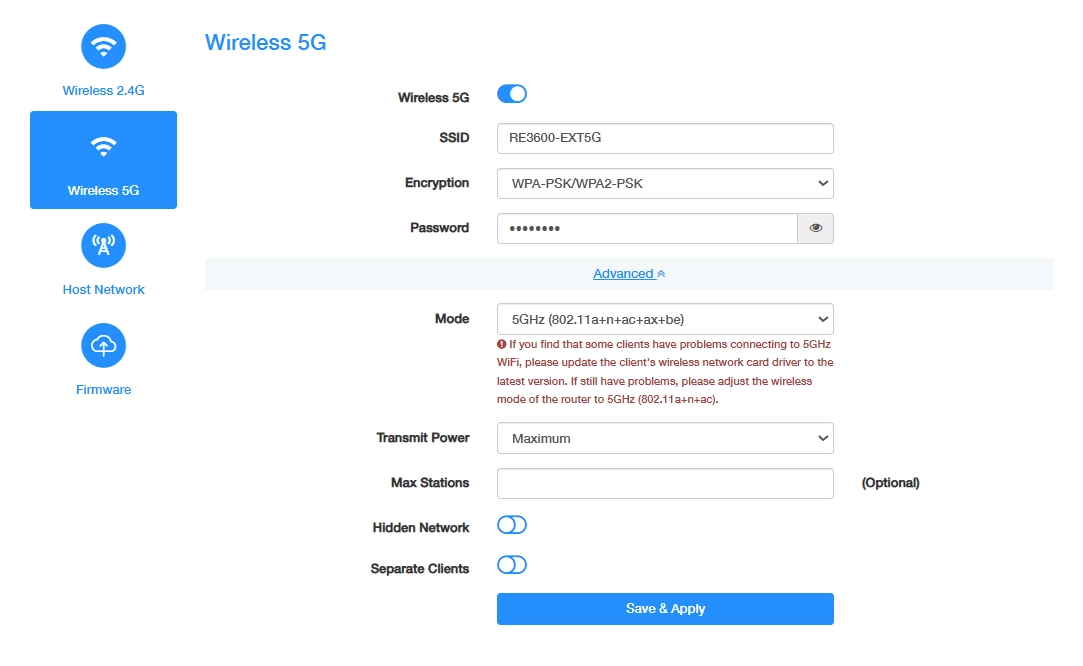
- Enable Wireless 5G;
- Customize your SSID (wireless network name);
- Select a strong Encryption and create a secure Password for your wireless network. Click Save & Apply to save these basic settings, or Advanced to continue with more and advanced settings.
- Select a proper Mode and Transmit Power.
- (Optional) Enter the maximum number of devices you want to allow on your network in the Max Stations field.
- Enable Hidden Network, if you don’t want your SSID to display automatically. Then you need to manually join the network.
- (If any) Enable Separate Clients to isolate the wireless clients from each other.
- Click Save & Apply to apply your new settings.
Host Network
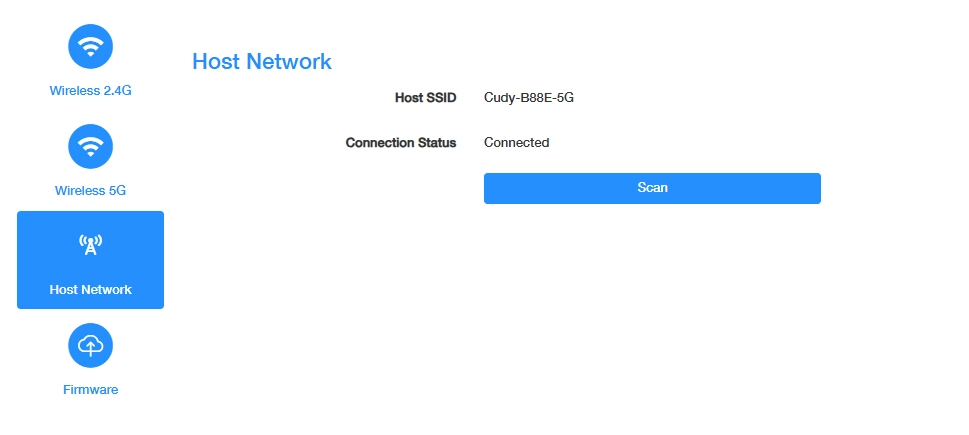
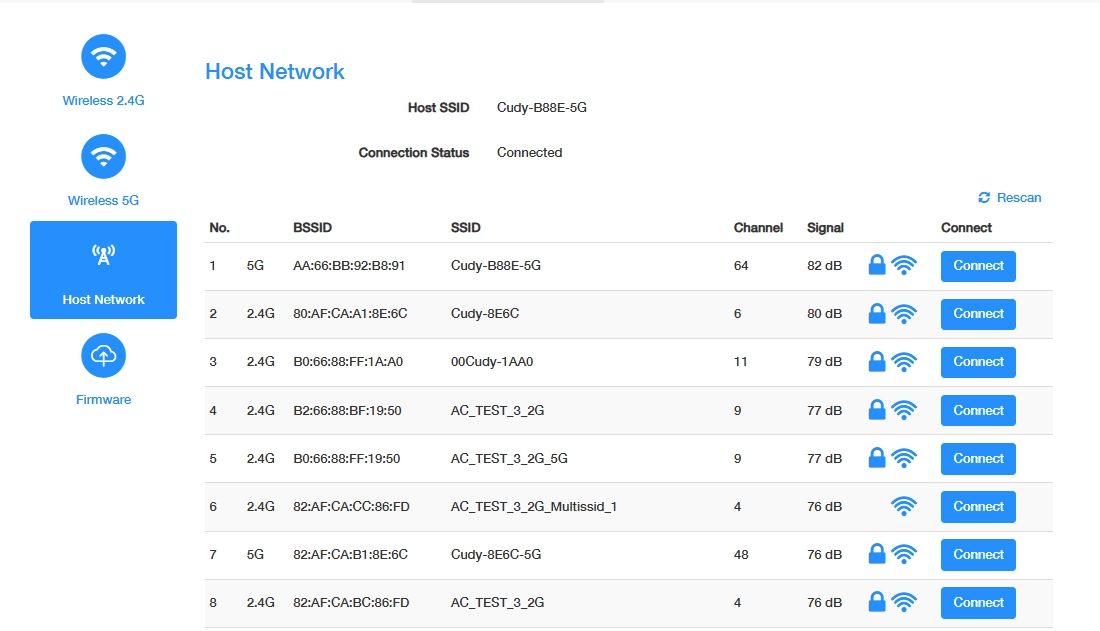
Shows the current Host Network being extended by this Range Extender. If you want to change the host network, click Scan to find more available network, and click Connect.
Firmware
Range Extender's latest firmware will be released at the Cudy official website www.cudy.com, and you can download it from www.cudy.com/download. Please choose an appropriate update method and follow the instructions.
Auto Update
The Range Extender will automatically update firmware to the latest version at the specified time.
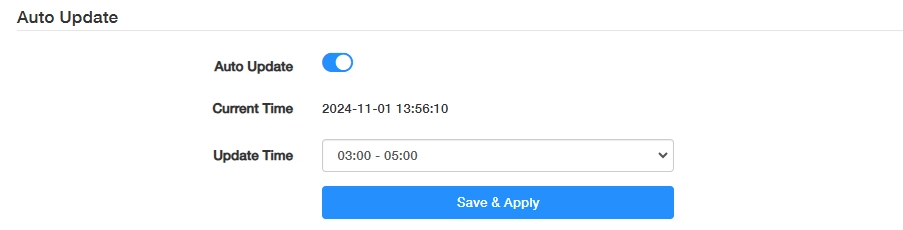
1) Enable Auto Update.
2) Specify the Update Time.
3) Click Save & Apply.
Note
- Backup your Range Extender’s configurations before firmware update.
- Do NOT turn off the Range Extender during the firmware update.
Online Update
If there is a new firmware available for the Range Extender, a prompt will appear upon your login to the Range Extender web management page. Click Update Now and then Update to upgrade the firmware to the latest version.
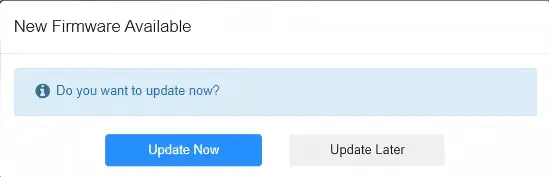
If you miss the prompt, please go to General Settings -> Firmware to check for update. If there is one, click Update and wait a few minutes for the update and reboot to complete.

Local Update
Click Browse... to locate and upload the latest firmware file you’ve downloaded from www.cudy.com. Wait a few minutes for the update and reboot to complete.

Note
If you fail to update the firmware for the Range Extender, please contact our technical support.