Wireless
Wireless is to customize the Router’s wireless settings, including SSID and password, mode, channel, channel width and transmit power, and so on. You may configure on the page General Settings -> Wireless.
2.4G/5G
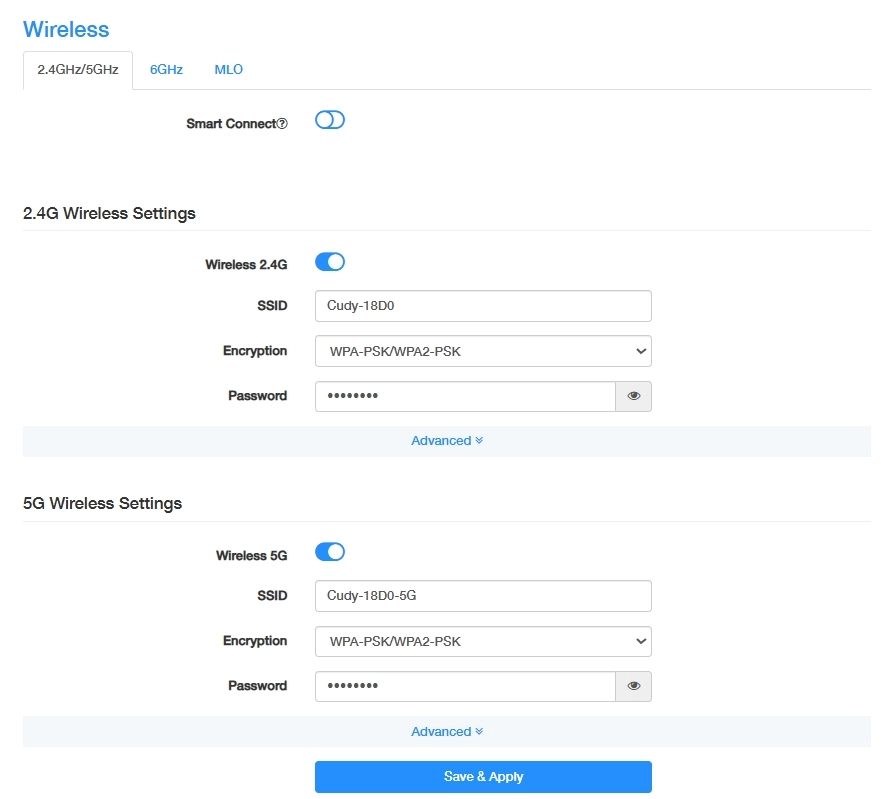
- Smart Connect: When it is enabled, 2.4GHz and 5GHz networks will share the same network name and password (only one SSlD will be displayed). Your wireless devices will automatically switch to connect to the Wi-Fi band providing the fastest speed. No manual configuration is needed.
To manually configure the 2.4G/5G wireless settings, please follow the steps below.
- Go to General Settings -> Wireless -> 2.4GHz/5GHz.
- Enable Wireless 2.4G/Wireless 5G;
- Customize your 2.4G/5G SSID (wireless network name);
- Select a strong Encryption and create a secure password for your wireless network;
- Select a proper Mode, Channel, Channel Width and Transmit Power;
- (Optional) Enter the maximum number of devices you want to allow on your network in the Max Stations field.
- Enable Hidden Network, if you don’t want your SSID to display automatically. Then you need to manually join the network.
- Enable Separate Clients to isolate the wireless clients from each other.
- Click Save & Apply to apply your new settings.
6G
Wireless 6G is only available for tri-band products, such as M11000 and more.

- Go to General Settings -> Wireless -> 6GHz.
- Enable Wireless 6G;
- Customize your SSID (wireless network name);
- Select a strong Encryption and create a secure Password for your wireless network. Click Save & Apply to save these basic settings, or Advanced to continue with more and advanced settings.
- Select a proper Mode and Transmit Power;
- (Optional) Enter the maximum number of devices you want to allow on your network in the Max Stations field.
- Enable Hidden Network, if you don’t want your SSID to display automatically. Then you need to manually join the network.
- (If any) Enable Separate Clients to isolate the wireless clients from each other.
- Click Save & Apply to apply your new settings.
MLO
MLO (Multi-Link Operation) enables Wi-Fi 7 devices to simultaneously send and receive data across different frequency bands and channels. This ensures fast and reliable connections even in dense network environments.
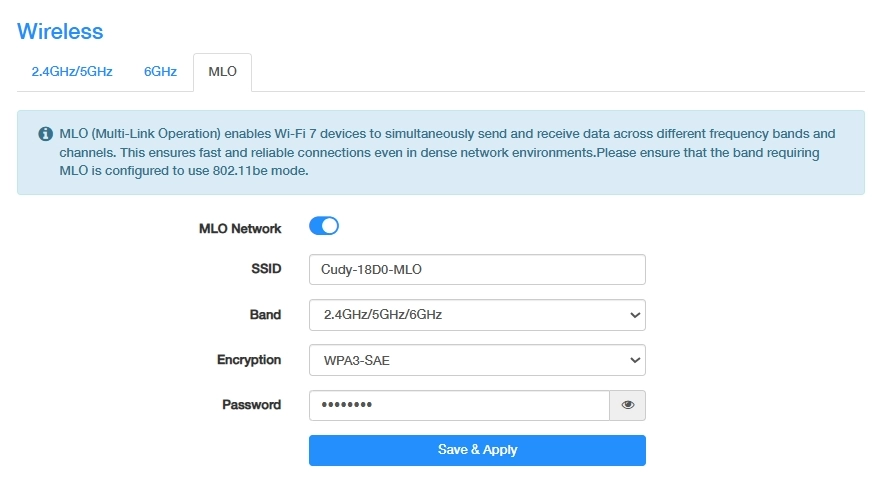
- Enable MLO Network.
- Customize the SSID for your wireless network.
- Select the Band.
- Select the Encryption and set the Password.
- Enable Hidden Network, if you don’t want your SSID to display automatically. Then you need to manually join the network.
- Click Save & Apply to apply your new settings.