Quick Installation Guide
Scenario 1: Set up main unit for a New Mesh Network.
-
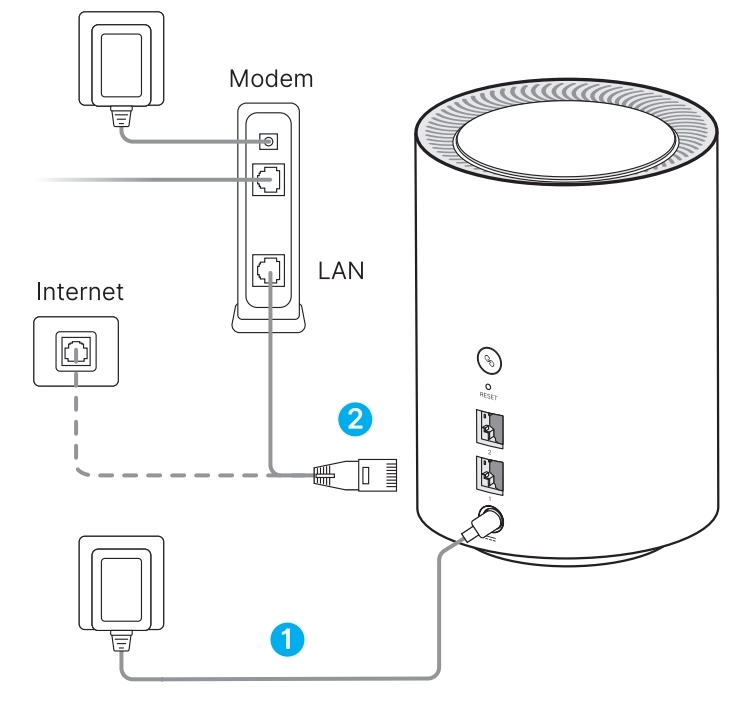
Plug the power adapter into the DC power jack of the main unit. Power it on and wait for the system LED to turn solid on.
-
Plug the Ethernet cable from the DSL/cable modem or wall outlet into Port 1 of the main unit.
-
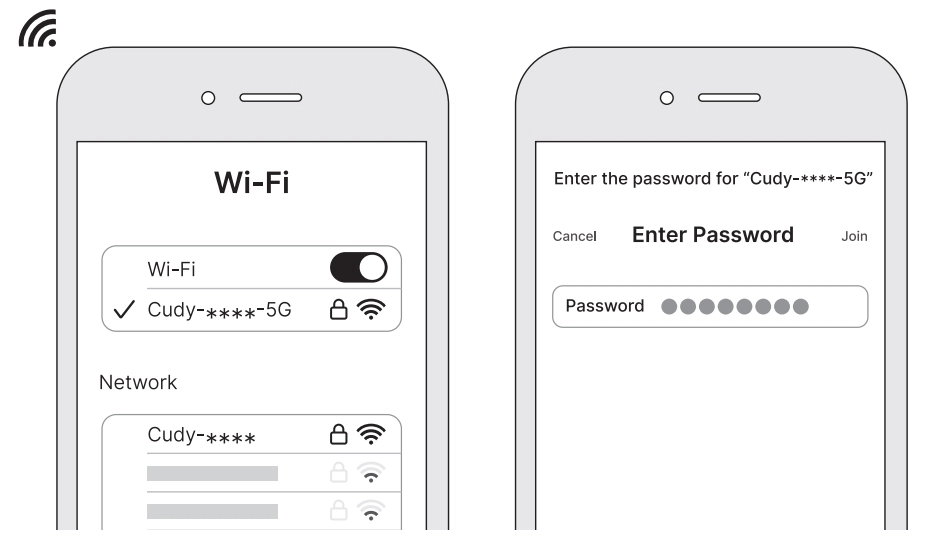
Go to Settings > WLAN on your phone. Find and tap on the Wi-Fi name of the main unit. Enter its password and tap Join.
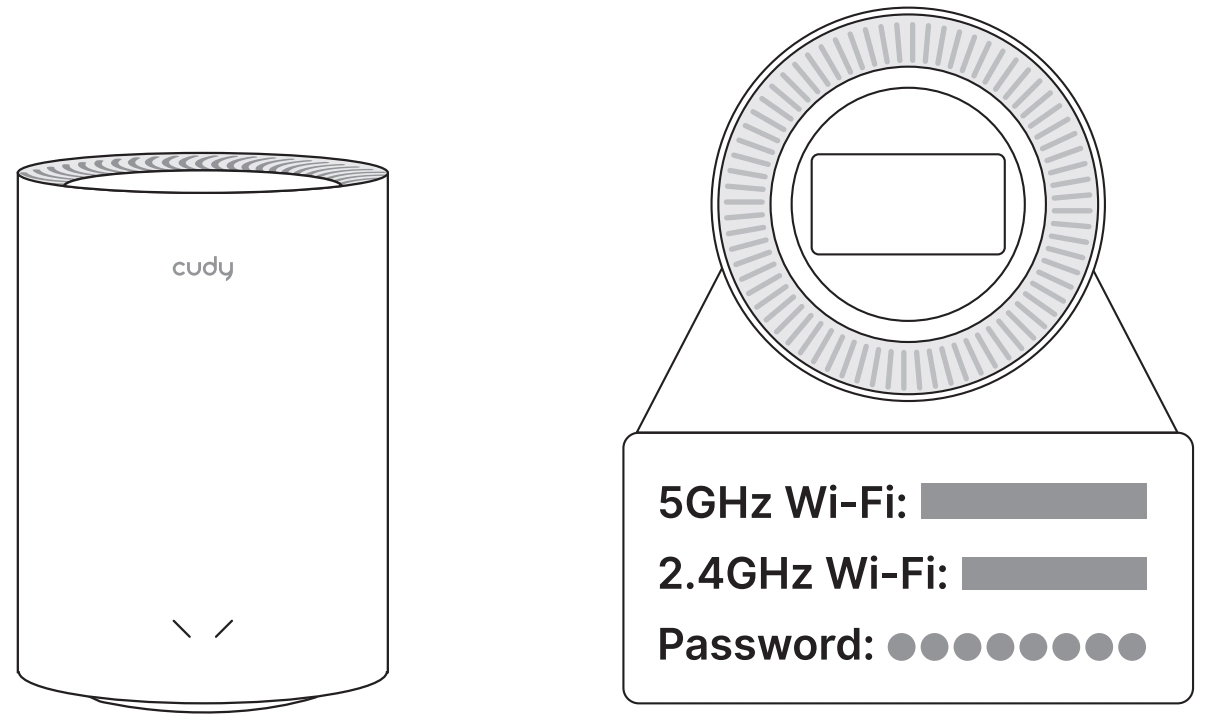
(Please find the Wi-Fi name and password on the product label at the bottom)
-
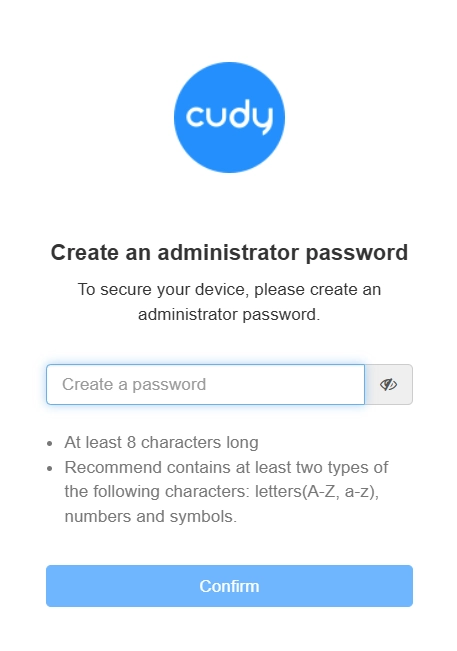
Open a browser, enter cudy.net (or 192.168.10.1) in the address bar, and create an administrator password to log in. Then follow the on-screen instructions to complete Quick Setup. Or simply launch the downloaded Cudy APP and follow the on-screen instructions.
-
Create administrator password to log in.
-
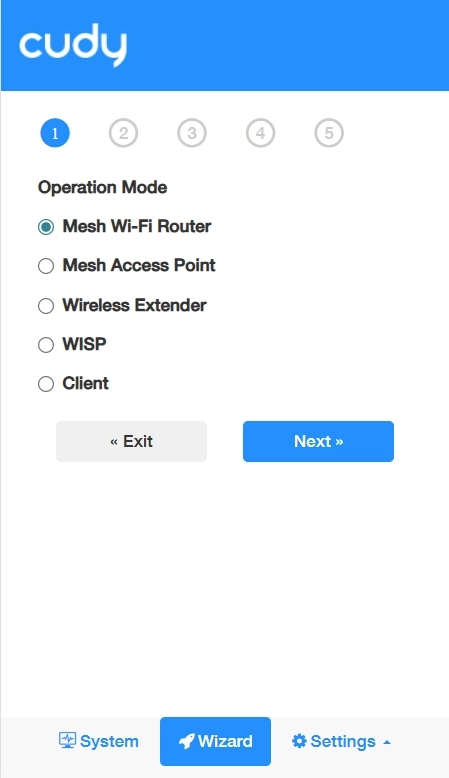
Select Operation Mode and click Next.
-
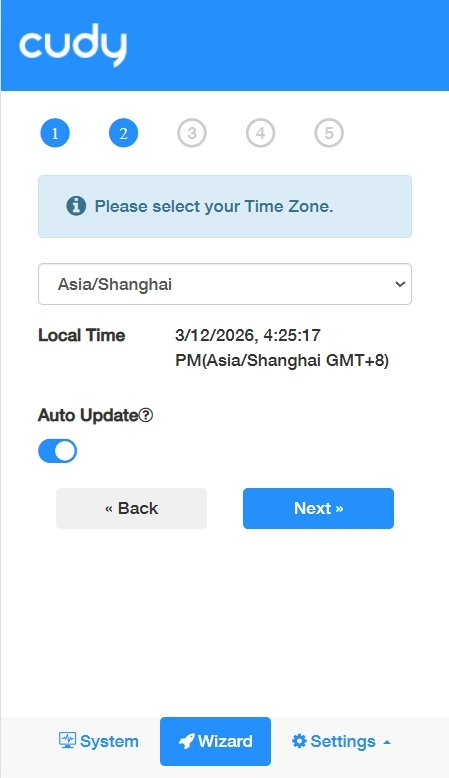
Select Time Zone and click Next.
-
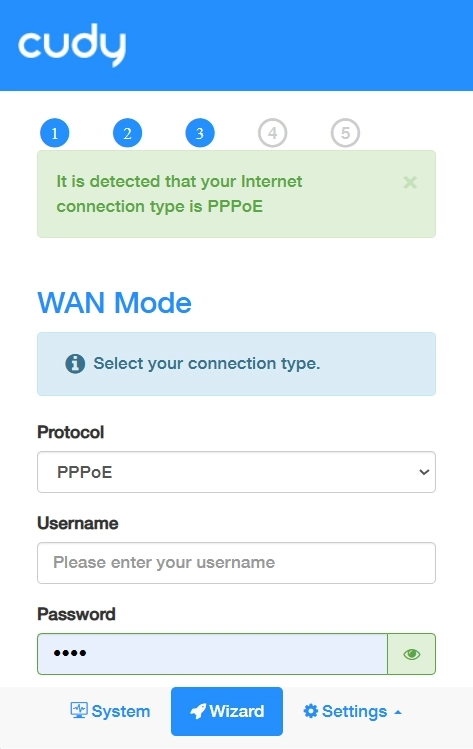
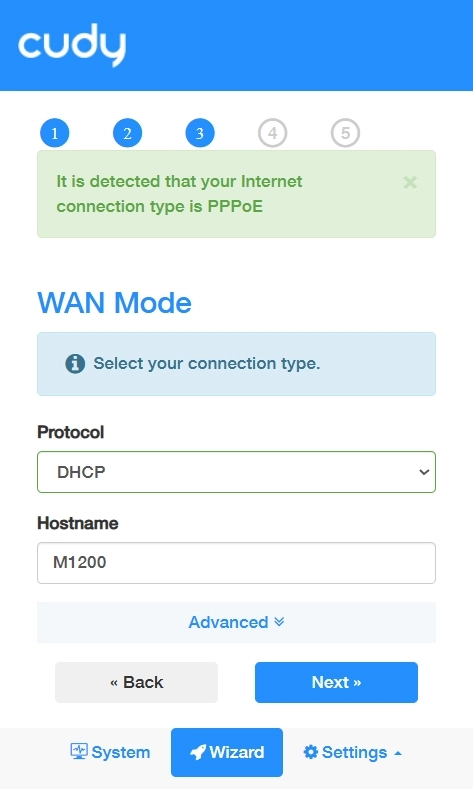
Auto-detect or select WAN Mode (connection type), and click Next.
- PPPoE: Enter the Username and Password provided by your lSP, if which is forgotten, please consult with your ISP.
- DHCP: Customize Hostname or keep it as default.
- PPPoE: Enter the Username and Password provided by your lSP, if which is forgotten, please consult with your ISP.
-
Customize 2.4G and 5G SSID (wireless network name) and Password, or keep it default, and click Next.
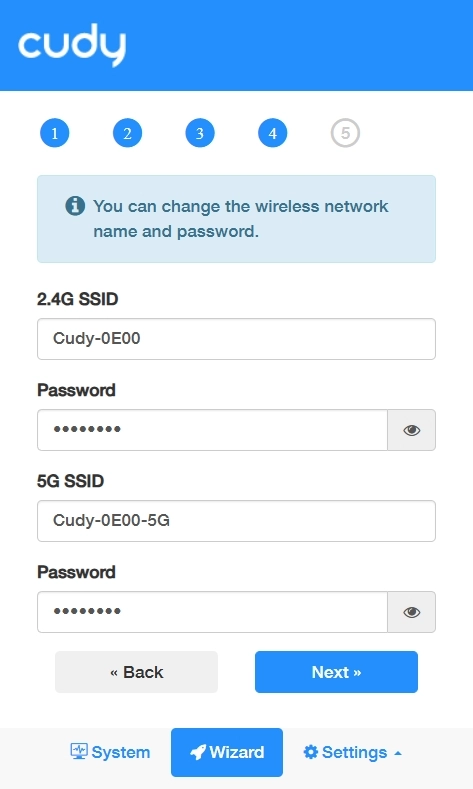
-
Confirm the settings and click Save & Apply. Or click Back to modify it.
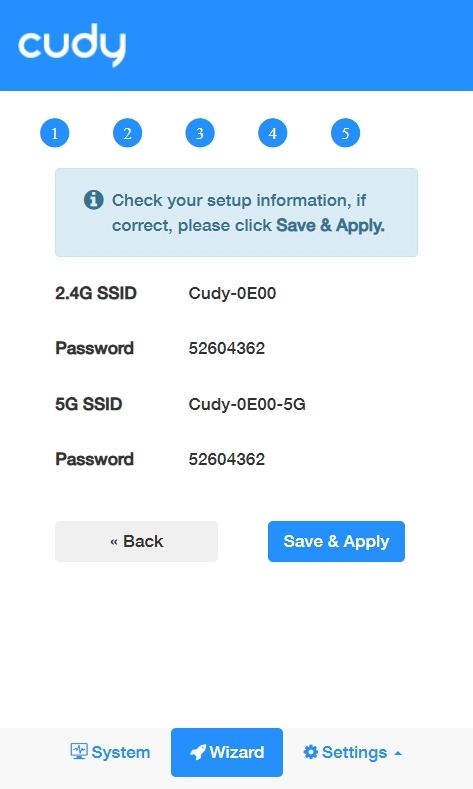
Note
- It may take a few minutes for the router to successfully connect to the Internet.
- lf you change the 2.4G/5G SSlD or Password, please connect to its new Wi-Fi network after the Quick Setup steps.
-
-
Place the new unit near the main unit, power it on and wait for its system LED to turn solid on. Choose one method to pair it with the main unit. Or simply follow the instructions on the downloaded Cudy APP.
- Method A: Pair up automatically if the new unit is from the same package with the main unit.
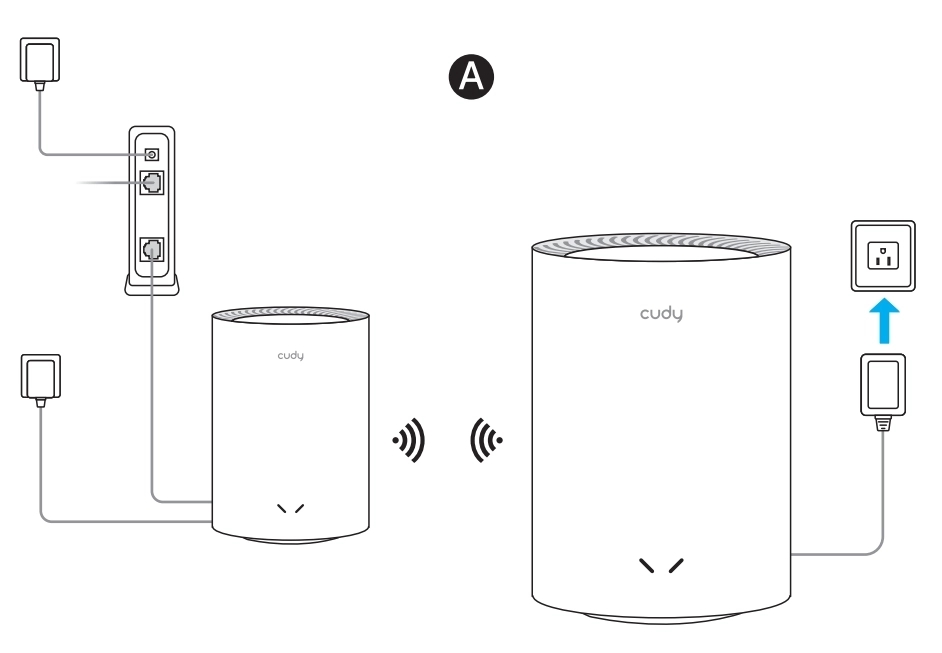
- Method B: Press the WPS buttons on both units simultaneously.
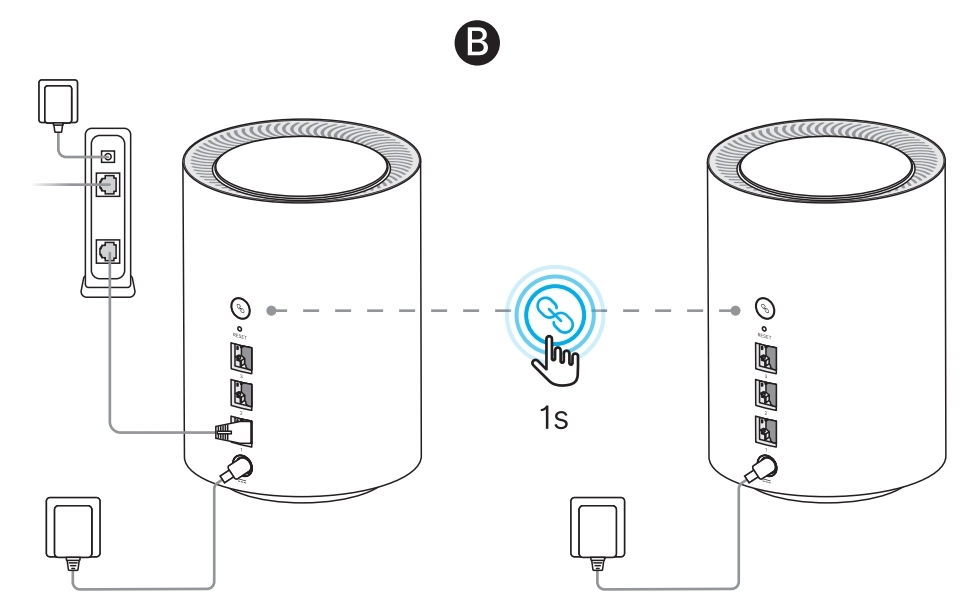
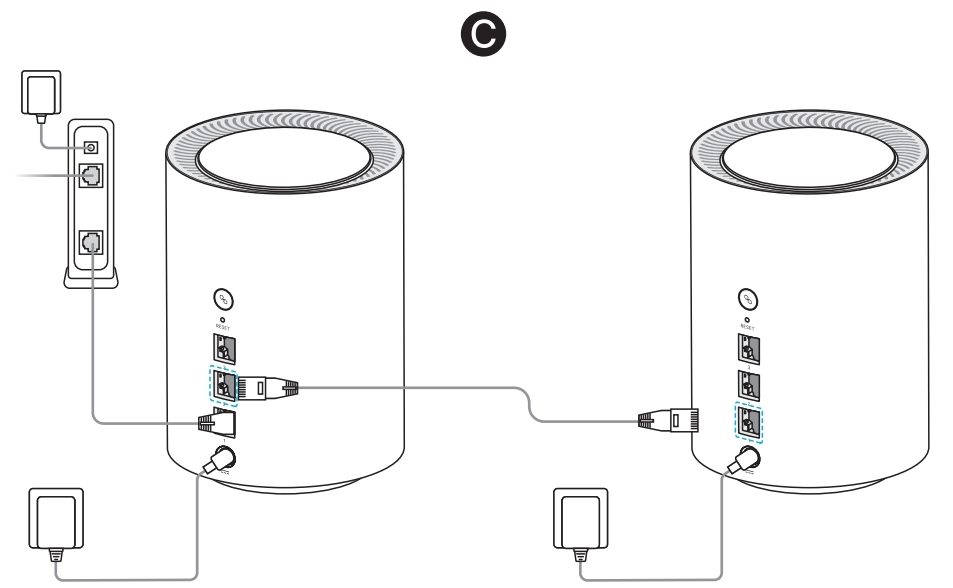
- Method C: Plug one end of an Ethernet cable into the new unit, and the other end into the main unit.
- Method A: Pair up automatically if the new unit is from the same package with the main unit.
-
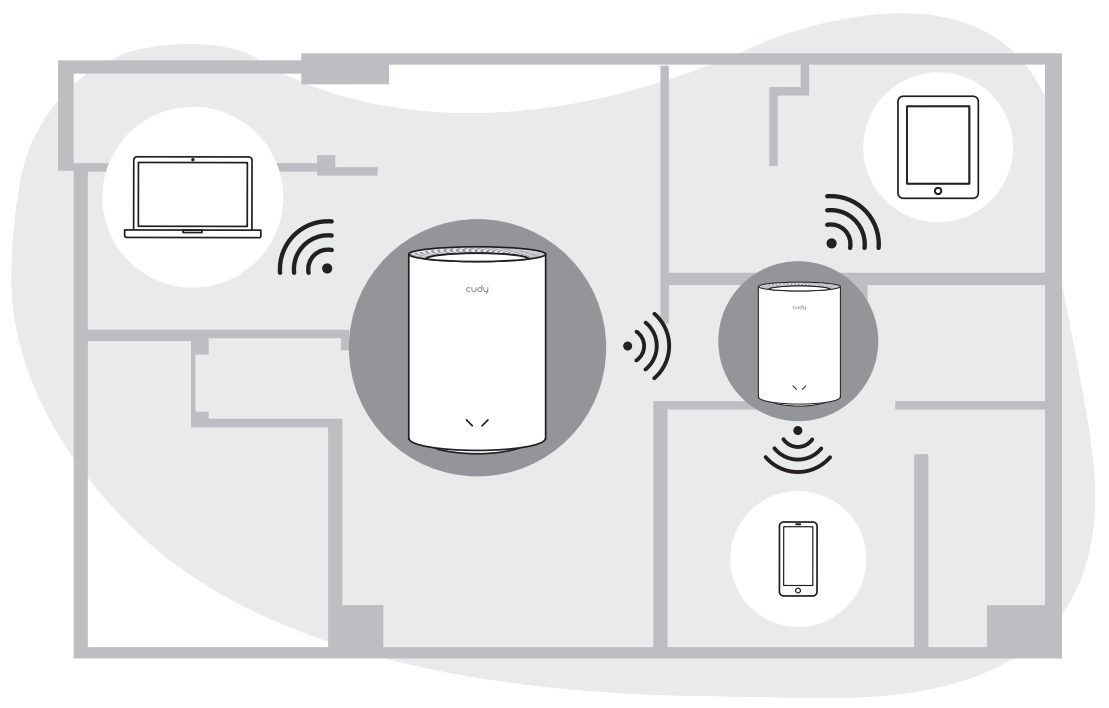
Move the newly added unit to a midpoint between the main unit and the Wi-Fi dead zone, where your phone detects at least two bars of signal. It will automatically reconnect to the main unit after booting.
Scenario 2: Add a new unit to an existing Mesh Network.
-
Place the new unit near the main unit, power it on and wait for its system LED to turn solid on.
-
Choose one method to pair it with the main unit. Or simply follow the instructions on the downloaded Cudy APP.
- Method A: Pair up automatically if the new unit is from the same package with the main unit.
- Method B: Press the WPS buttons on both units simultaneously.
- Method C: Plug one end of an Ethernet cable into the new unit, and the other end into the main unit.
- Method A: Pair up automatically if the new unit is from the same package with the main unit.
-
Move the newly added unit to a midpoint between the main unit and the Wi-Fi dead zone, where your phone detects at least two bars of signal. It will automatically reconnect to the main unit after booting.