DHCP Server
Router acts as a DHCP (Dynamic Host Configuration Protocol) server, which is enabled by default. It dynamically assigns TCP/IP parameters to client devices from the IP Address Pool. DO NOT disable DHCP server unless you have another DHCP server, or you want to manually assign the TCP/IP parameters to every client device on the network.
DHCP Status
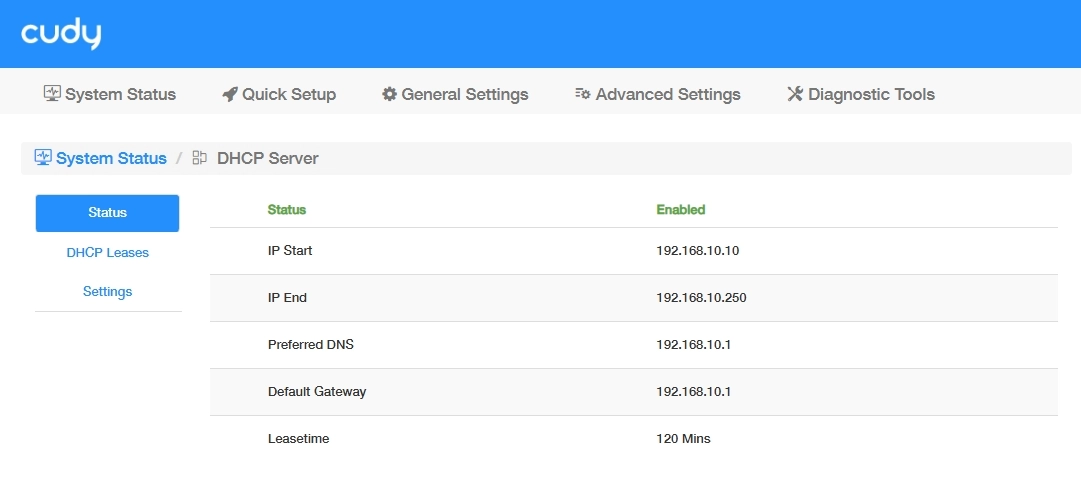
Go to System Status -> DHCP Server -> More Details -> Status to view the DHCP Server status and detailed information.
DHCP Leases
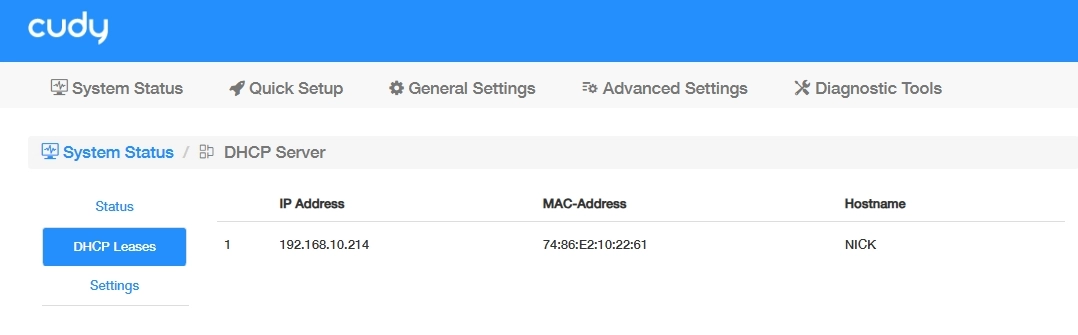
Go to System Status -> DHCP Server -> More Details -> DHCP Leases and get a list of clients which the Router being a DHCP server has allocated an IP address to, including such information as IP address, MAC address and Host name.
DHCP Settings
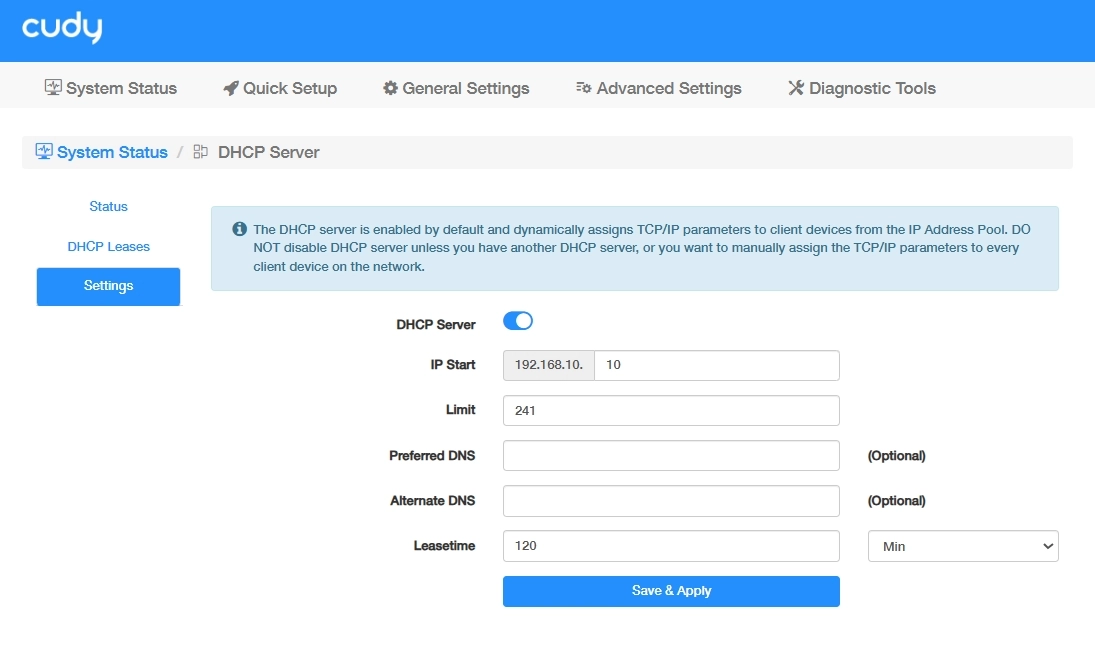
To specify the IP address that the Router assigns, please follow the steps below.
- Go to System Status -> DHCP Server -> More Details -> Settings or Advanced Settings -> Network -> DHCP Server.
- Enable the DHCP Server.
- Enter the starting IP addresses and the Limit number to create the IP Address Pool.
- (Optional) Enter the DNS if the ISP offers.
- Enter the Lease time.
- Click Save & Apply.
Note
If you want to reserve for a specified client device an IP address, which is assigned by the router as a DHCP server, you may use the IP/MAC binding function.