Mesh
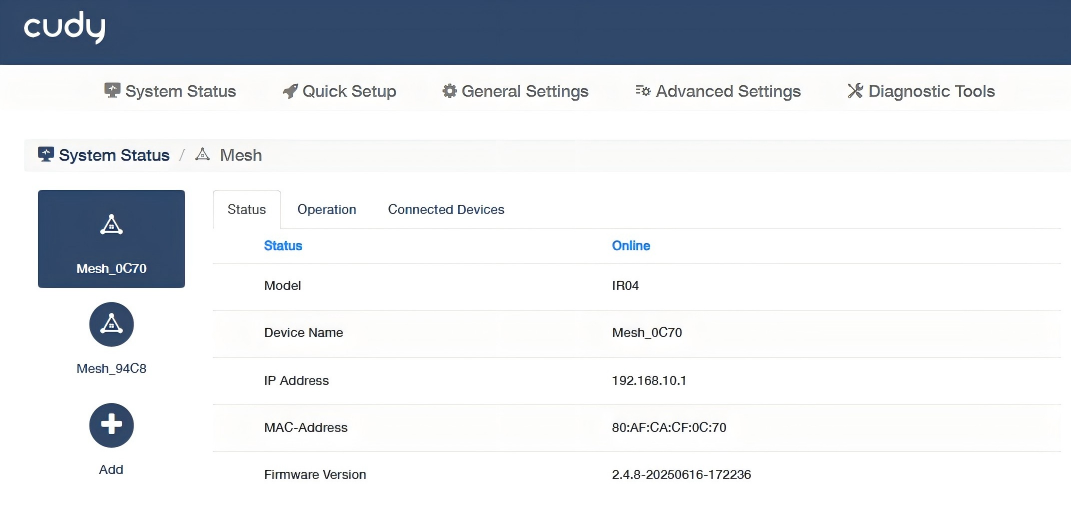
On the System Status -> Mesh page to add or manage a Mesh Unit, please follow the steps:
-
Click
 on the left to add new mesh unit.
 -
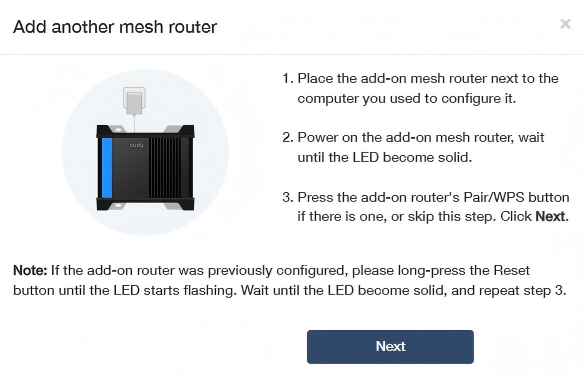
Read the instructions and click Next.
-
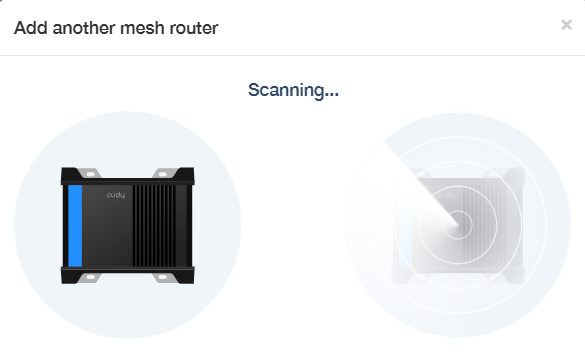
Wait a few moments for scanning.
-
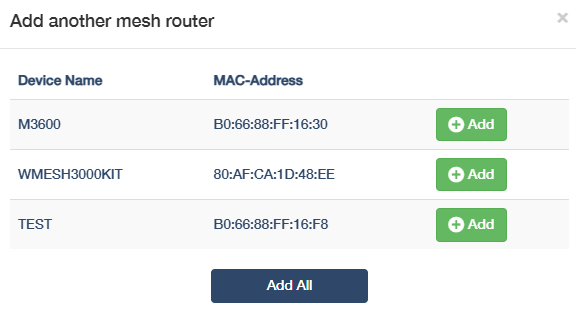
Select the unit you want to add and click
 .
.
-
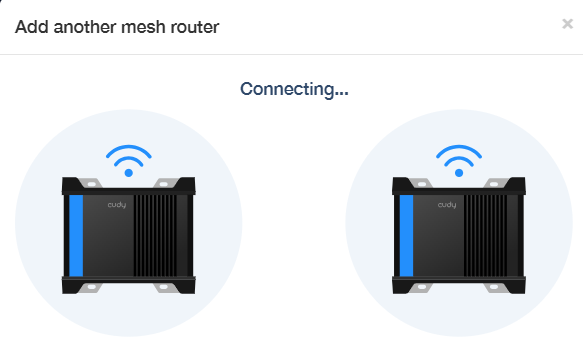
Wait a few moments for connecting.
-
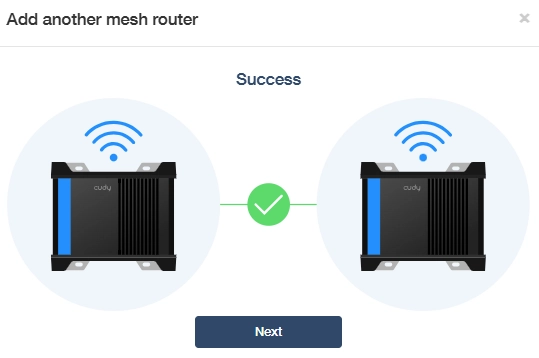
Click Next upon success.
-
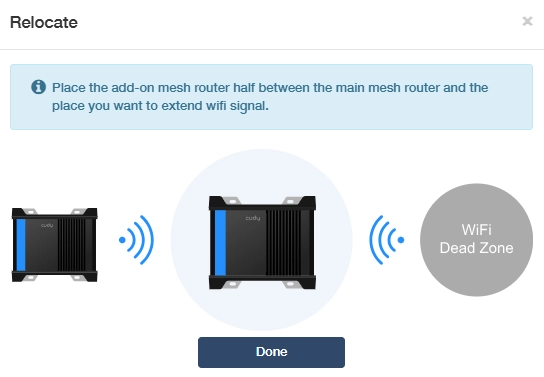
Relocate the add-on mesh unit as instructed. Then click Done to complete.
Status section displays information about the mesh units, including Status, Model, Device Name, IP Address, MAC-Address, Firmware Version, and two more for add-on mesh units Backhaul and 2.4G Pre-Hop.
- Backhaul: Main link between mesh nodes for fast and stable data transfer. Could be Wired, 2.4G WiFi or 5G WiFi.
- 2.4G Pre-Hop: Backup 2.4GHz path used when stronger signals fail, prioritizing coverage over speed.
Operation section facilitates the following configurations:
- Management: (only for add-on mesh units) Toggle to disconnect the add-on mesh unit.
- Device Name: Customize the device name of the mesh unit.
- Firmware: Check the current firmware version or upgrade it to the latest version that has been downloaded and stored in the local file.
- Reboot: Reboot the system to refresh and improve performance or have new settings take effect.
- Reset: Restore the mesh unit to its factory defaults.
- LED Control: (only for add-on mesh units) Toggle to turn off the LEDs when necessary, and then the LEDs will not light up unless manually turned on or triggered by a special event.
Connected Devices section displays information about the devices connected to the mesh unit, including hostname and its connection method, IP and MAC address, realtime rate and the connection duration.