Firmware
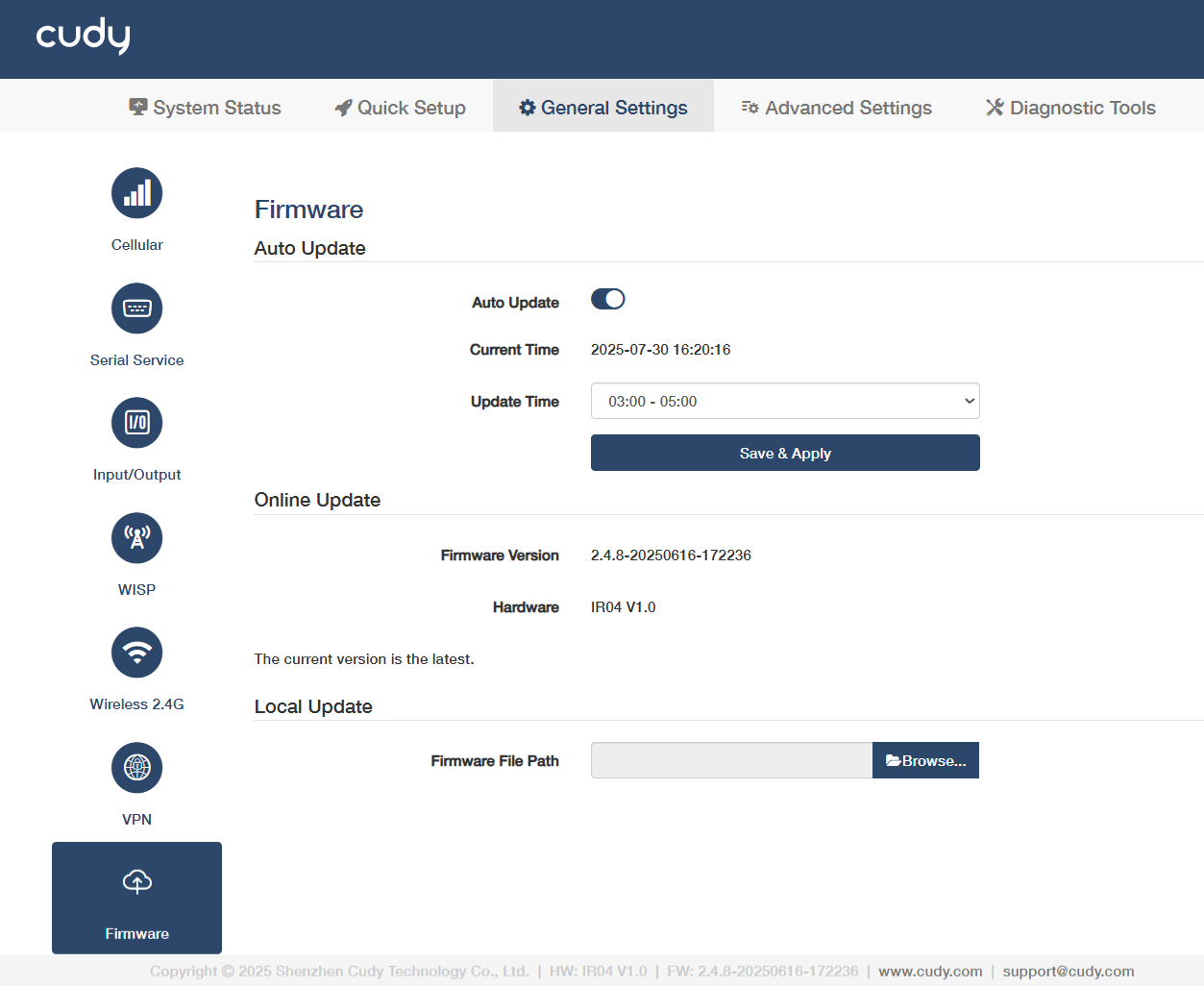
On the General Settings >> Firmware page, you can update the router's firmware to the latest version for better performance. Please choose an appropriate update method and follow the instructions.
-
Auto Update
It allows the router to automatically update firmware to the latest version at the specified time.
1) Enable Auto Update.
2) Specify the Update Time
3) Click Save & Apply.
Note
Backup your router’s configurations before firmware update. Do NOT turn off the router during the firmware update.
-
Online Update
- If there is a new firmware available for the router, a prompt will appear upon your login to the router web management page. Click Update Now and then Update to upgrade the firmware to the latest version.
- If you miss the prompt, please go to General Settings -> Firmware to check for update. If there is one, click Update and wait a few minutes for the update and reboot to complete.
Note
If your current version is the latest one, there will be no any instructions as above.
-
Local Update
Click Browse... to locate and upload the latest firmware file you’ve downloaded from www.cudy.com. Wait a few minutes for the update and reboot to complete.
Note
If you fail to update the firmware for the router, please contact our technical support.