System Status
-
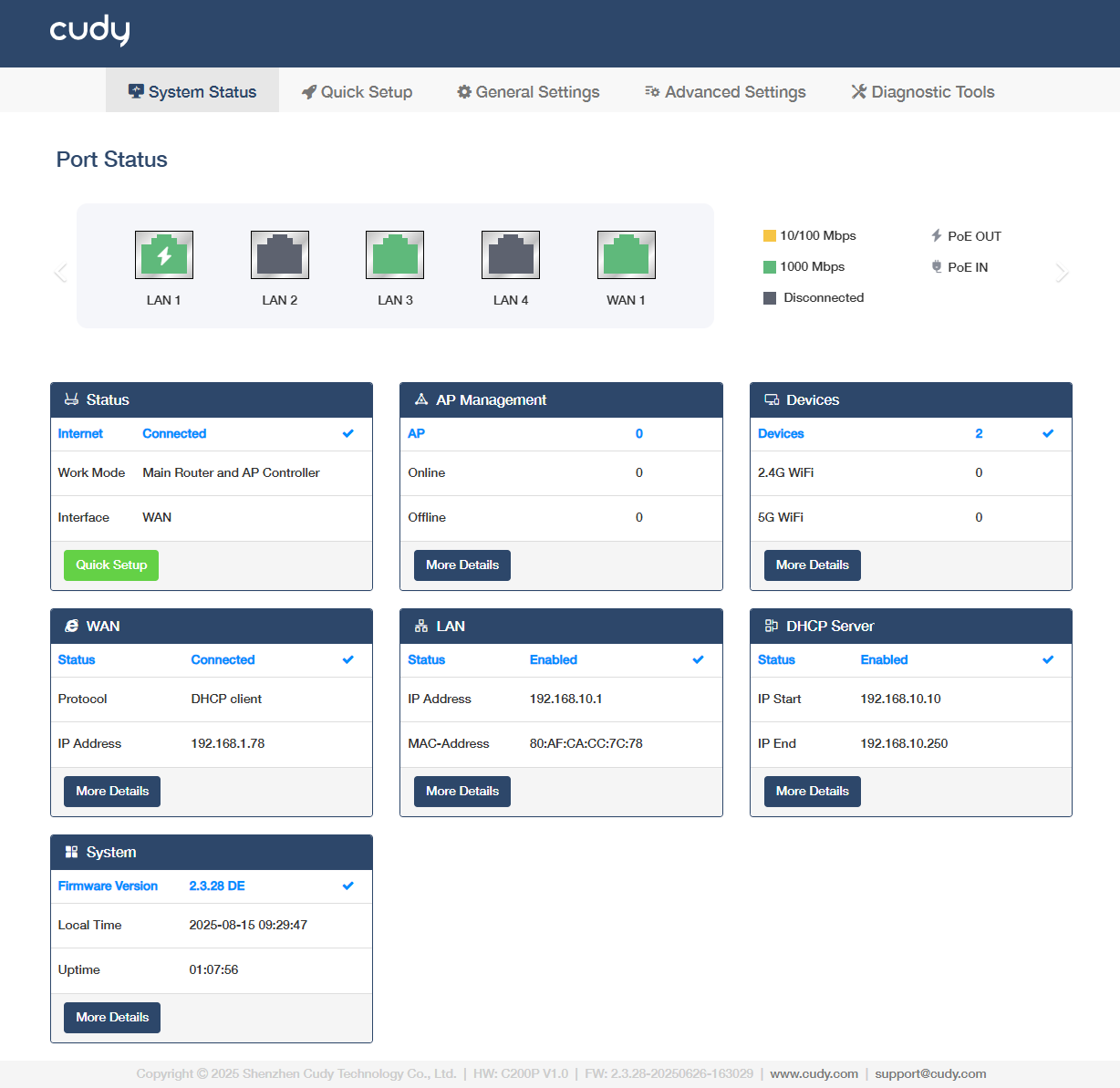
System Status in Main Router and AP Controller Mode
-
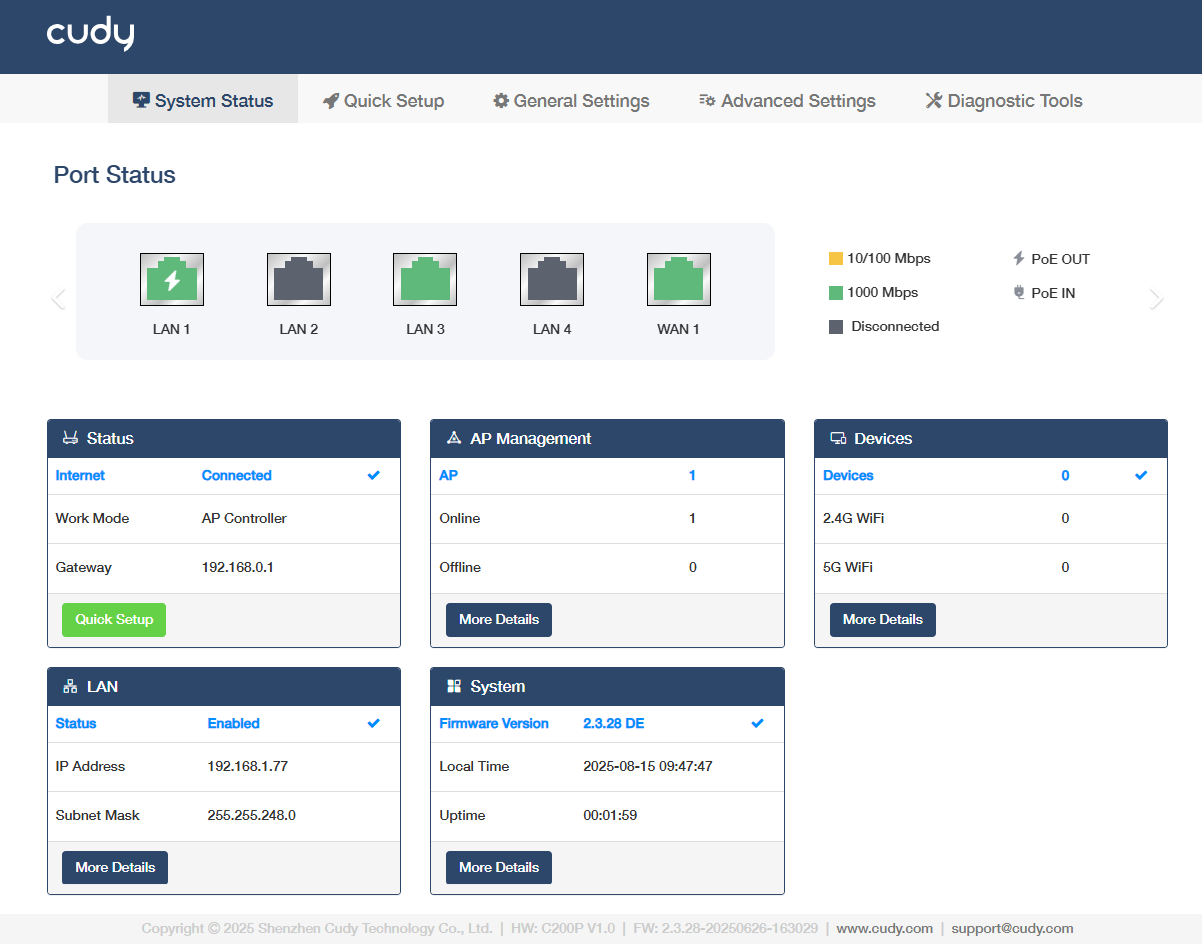
System Status in AP Controller Mode
Port Status
shows real-time port connection status, data speed, PoE power in/out, as well as dashboard for real-time CPU usage (%) and memory utilization (%) of the ports.
Status
shows whether it has connected to the Internet or not, and its work mode and interface (or gateway). Click Quick Setup to redirect to the Quick Setup page.
AP Management
shows the amount of APs in the management and amount of them being online or offline. Click More Details for more configurations (refer to AP Management).
Devices
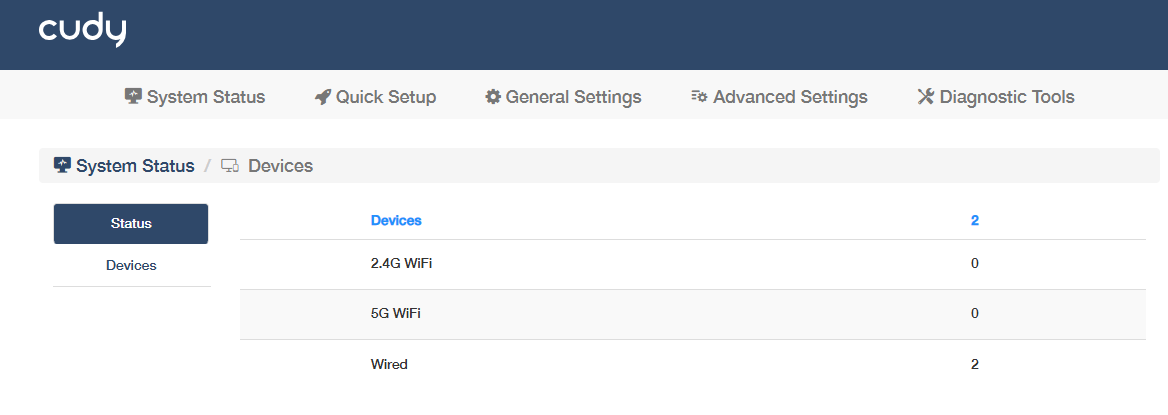
shows the amount of devices connected to the controller, via 2.4G WiFi or 5G WiFi, or Wired which is only viewable on the More Details -> (Devices) Status page.
Note
In Main Router and AP Controller mode, here will display the WiFi and Wired devices connected in the LAN; in AP Controller mode, it will only display those connected to the controlled AP.
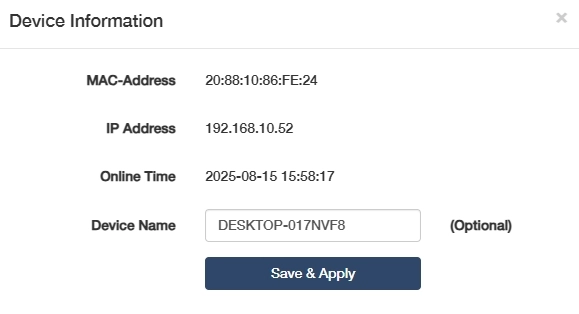
View the Device information about hostname, IP/MAC address, real-time rate, signal and connection duration.
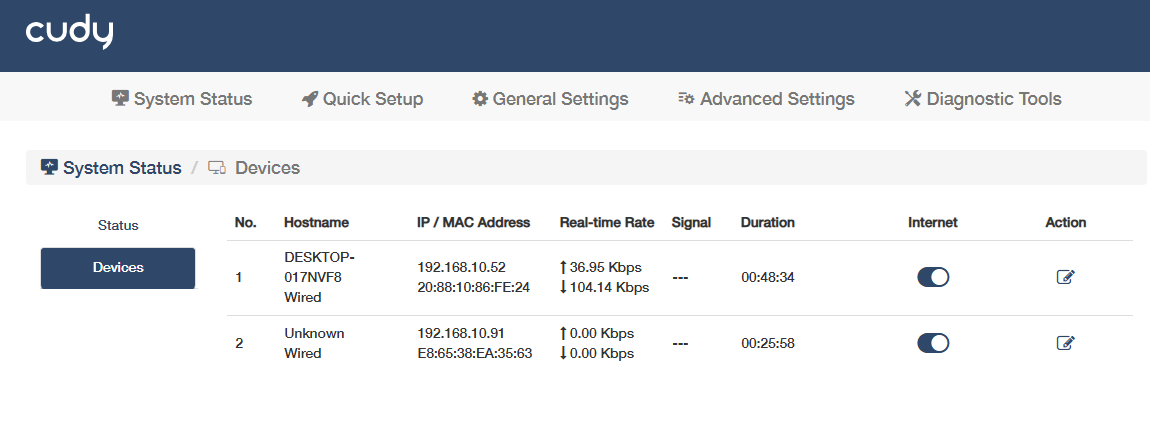
- Enable or disable the Internet connection.
- Edit the device name by clicking on
 .
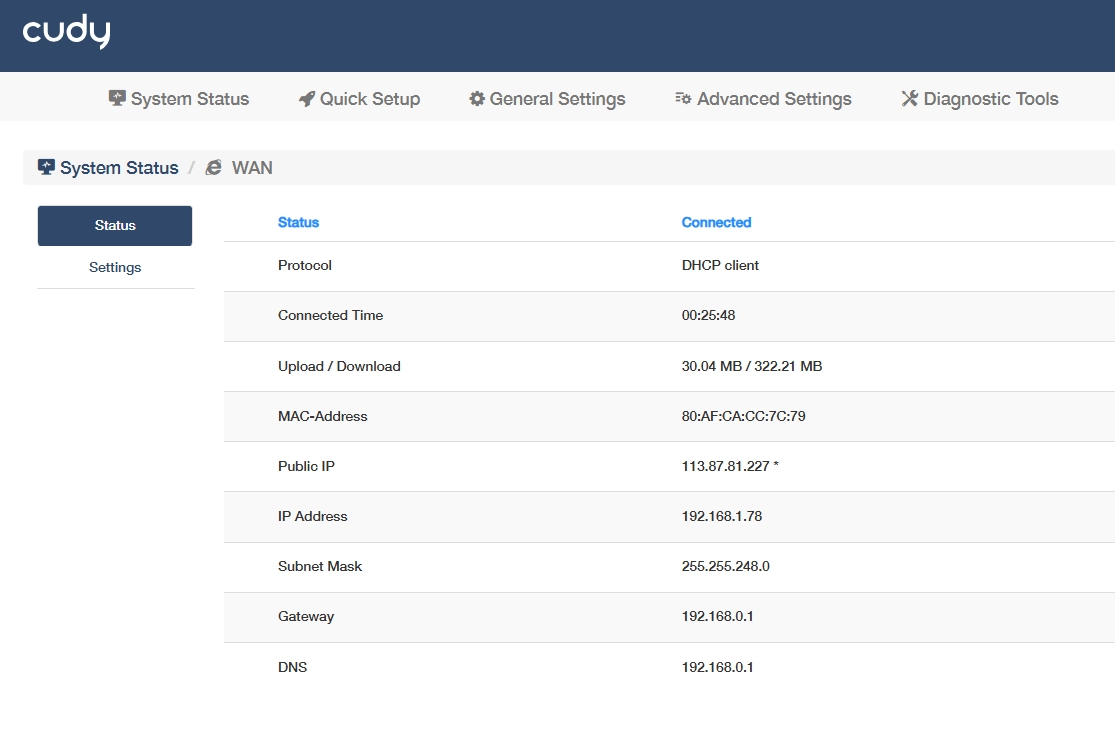
WAN
(Only for Main Router and AP Controller Mode) shows whether the controller's WAN port is connected or not, its protocol and IP address. Click More Details to know more information on the Status sub-page, or configure some settings (refer to WAN Mode).
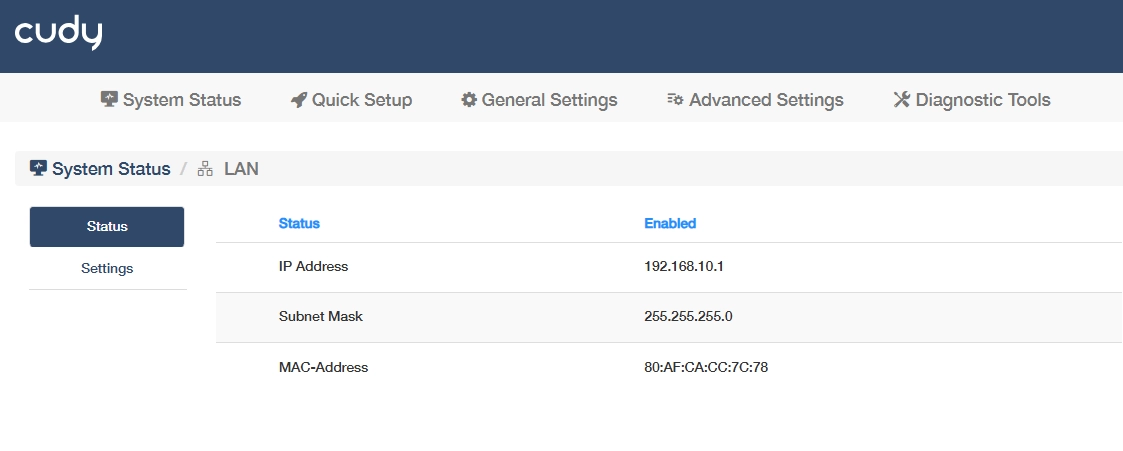
LAN
shows whether the controller's LAN network connection is enabled or not, its IP address and MAC address. Click More Details to know more information on the Status sub-page, or configure some settings (refer to LAN).
DHCP Server
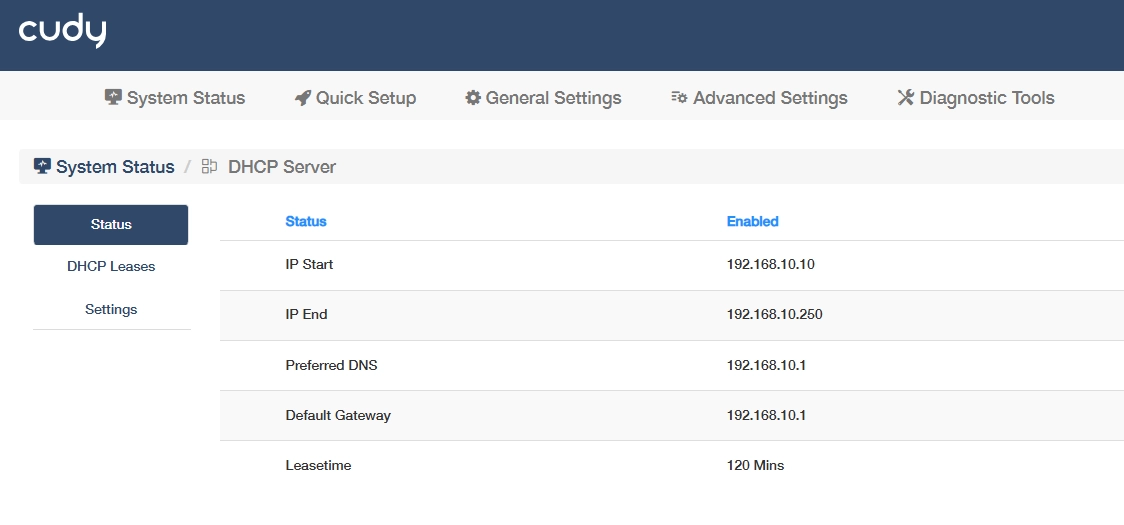
(Only for Main Router and AP Controller Mode) shows whether the DHCP Server is enabled or not, and its starting/ending IP. Click More Details to know more information on the Status and DHCP Leases sub-pages, or configure some settings.
When the controller works in the mode of Main Router and AP Controller, it could also acts as a DHCP (Dynamic Host Configuration Protocol) server to dynamically assign TCP/IP parameters to client devices from the IP Address Pool. DO NOT disable DHCP server unless you have another DHCP server, or you want to manually assign the TCP/IP parameters to every client device on the network.
Go to Advanced Settings -> Network -> DHCP Server or System Status-> DHCP Server -> More Details to see if it is Enabled or Disabled as well as its IP address and subnet mask. Click More Details to know more information about it or make changes on Settings page.
DHCP Status
- Status: Indicates whether the DHCP service is active (enabled) or inactive (disabled) on the network.
- IP Start: Display the first IP address in the range that the DHCP server can assign to devices.
- IP End: Display the last IP address in the assignable range for DHCP leases.
- Preferred DNS: Display the primary DNS server IP provided by DHCP for domain resolution.
- Default Gateway: Display the router/firewall IP that devices use to access external networks.
- Lease time: Display the duration a device retains an assigned IP before renewal.
DHCP Leases
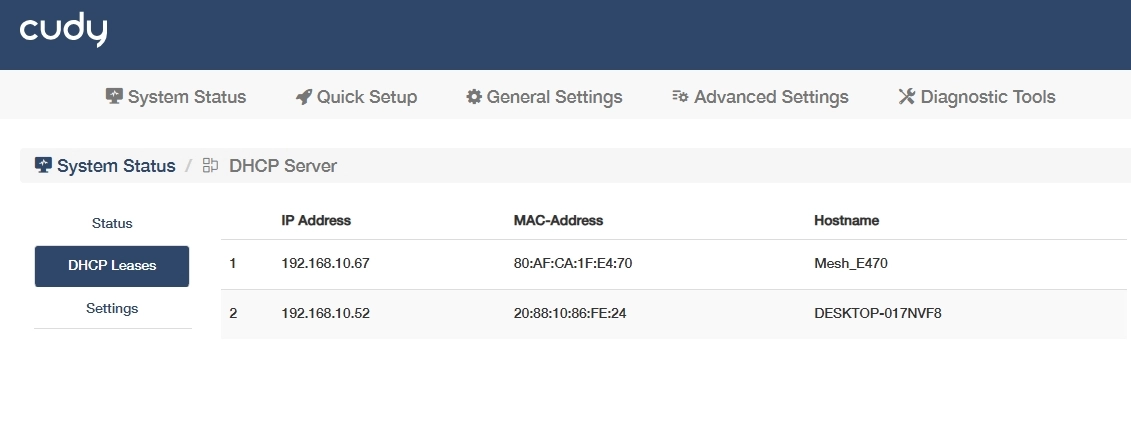
The DHCP Leases will show a list of clients which the Router being a DHCP server has allocated an IP address to, including such information as IP address, MAC address and Host name.
DHCP Settings
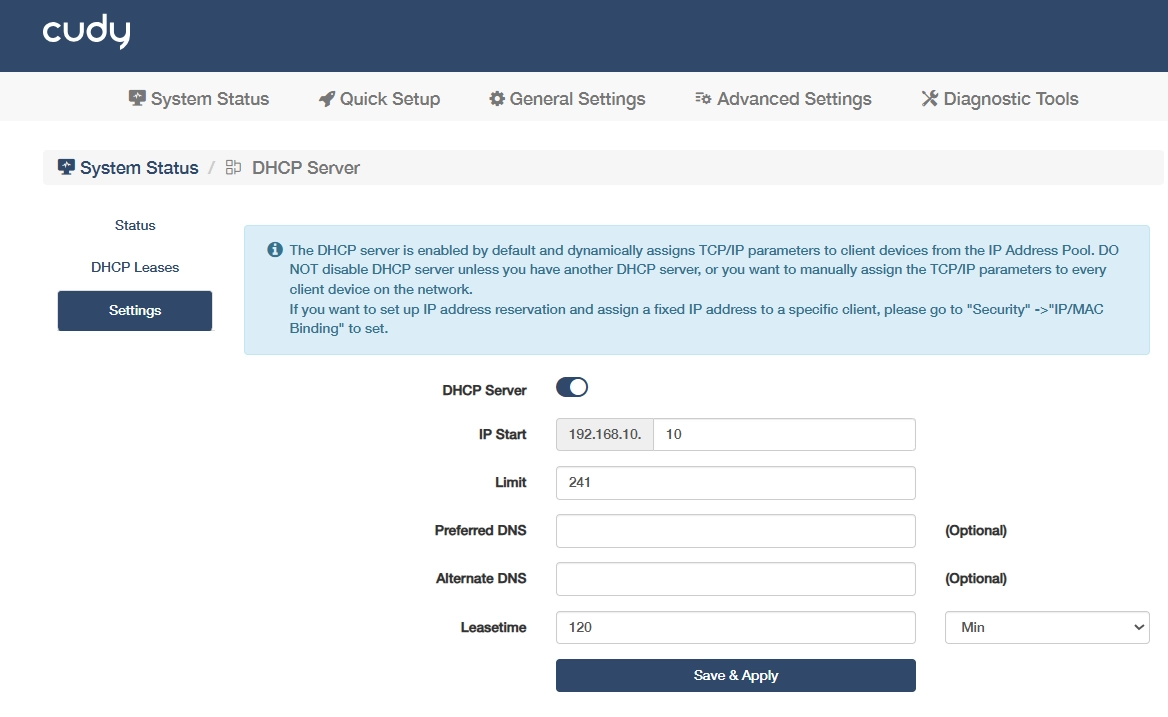
To specify the IP address that the Router assigns, please follow the steps below.
- Enable the DHCP Server.
- Enter the starting IP addresses and the Limit number to create the IP Address Pool.
- (Optional) Enter the DNS if the ISP offers.
- Enter the Lease time.
- Click Save & Apply.
Note
If you want to reserve for a specified client device an IP address, which is assigned by the router as a DHCP server, you may use the IP/MAC binding function.
System
shows the controller's firmware version, current local time and uptime. Click More Details to know more information on the Status, Statistics, ARP, Active IP Routes and System Log sub-pages (refer to System).
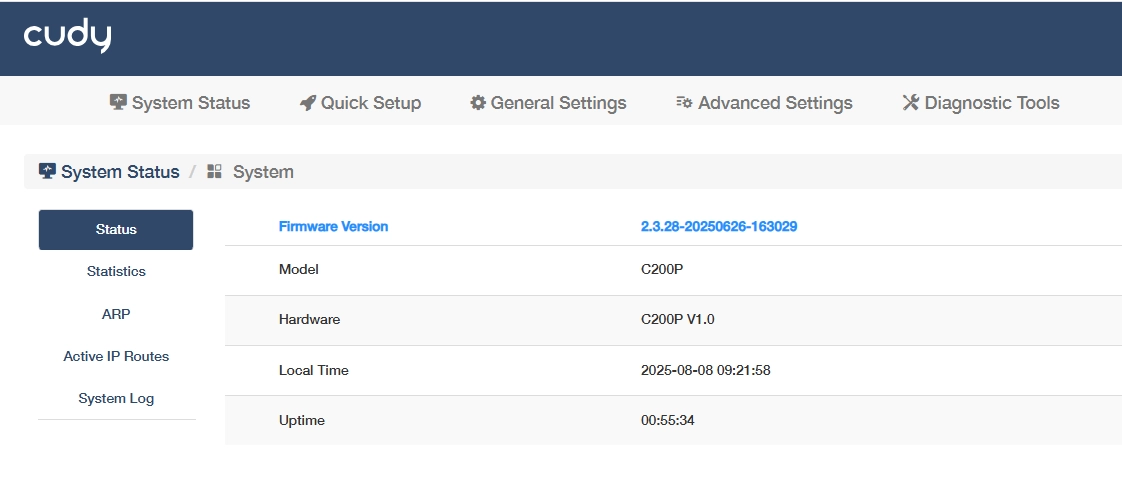
-
Status: Displays real-time operational states to provide a snapshot of system health and configuration baseline for troubleshooting.
- Firmware Version: Current software version installed on the controller, critical for updates and compatibility.
- Model: Controller's product model, used for identifying hardware specifications.
- Hardware: Physical components/revision, indicating the device's internal build.
- Local Time: Controller's configured time, essential for time-based operations and logs.
- Uptime: Duration since the last reboot, reflecting system stability and reliability.
-
Statistics: Tracks network performance metrics per interface (WLAN or LAN) to identify bandwidth bottlenecks, packet loss, or hardware faults.
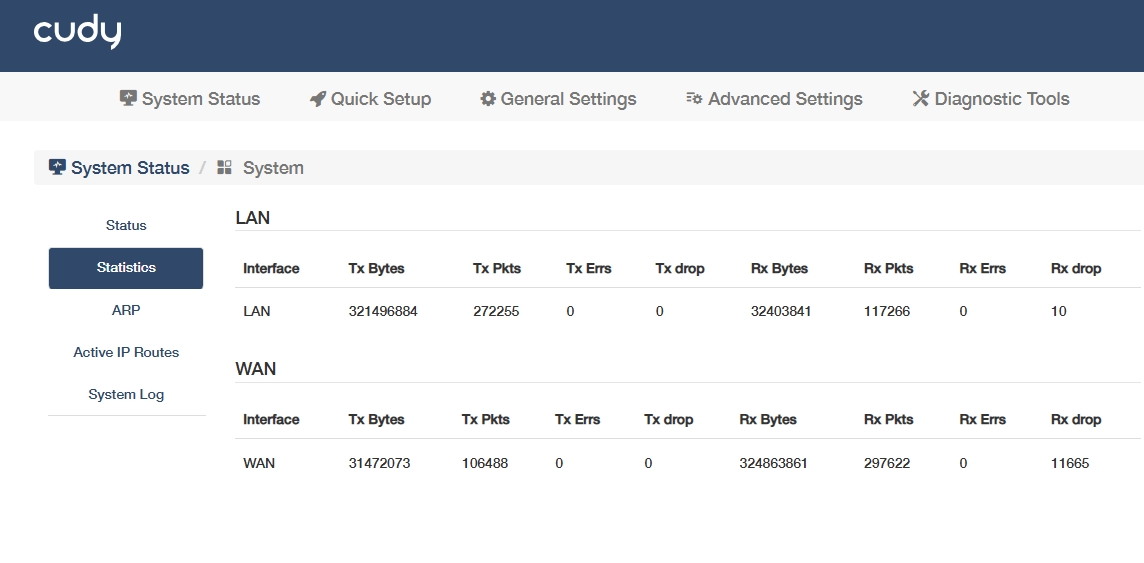
- Interface: The network port or connection type being monitored.
- Tx Bytes: Total data transmitted.
- Tx Pkts: Number of packets sent.
- Tx Errs: Transmission errors.
- Tx Drop: Packets dropped due to congestion or faults.
- Rx Bytes: Total data received.
- Rx Pkts: Number of packets received.
- Rx Errs: Reception errors.
- Rx Drop: Packets dropped during reception.
-
ARP: Maps IP addresses to MAC addresses for local network communication to detect IP conflicts and monitors connected devices in the LAN.
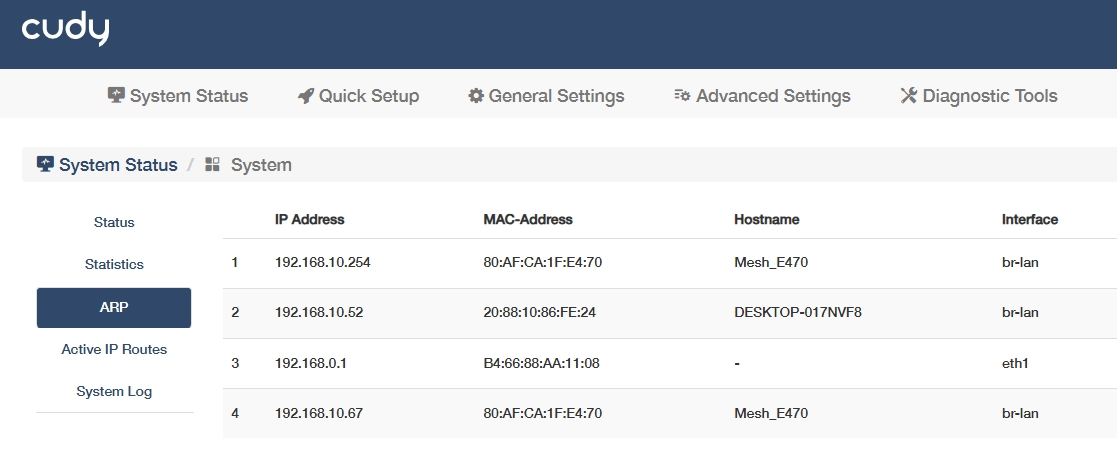
- IP Address: Network-layer address assigned to a device in the local network.
- MAC-Address: Physical hardware address uniquely identifying a device at the data-link layer.
- Hostname: Device name associated with the IP/MAC address, typically obtained via DNS reverse lookup or local host mapping.
- Interface: Network interface through which the ARP entry is learned or associated.
-
Active IP Routes: Shows path selection rules for data forwarding to optimize traffic routing and diagnoses connectivity issues between networks.
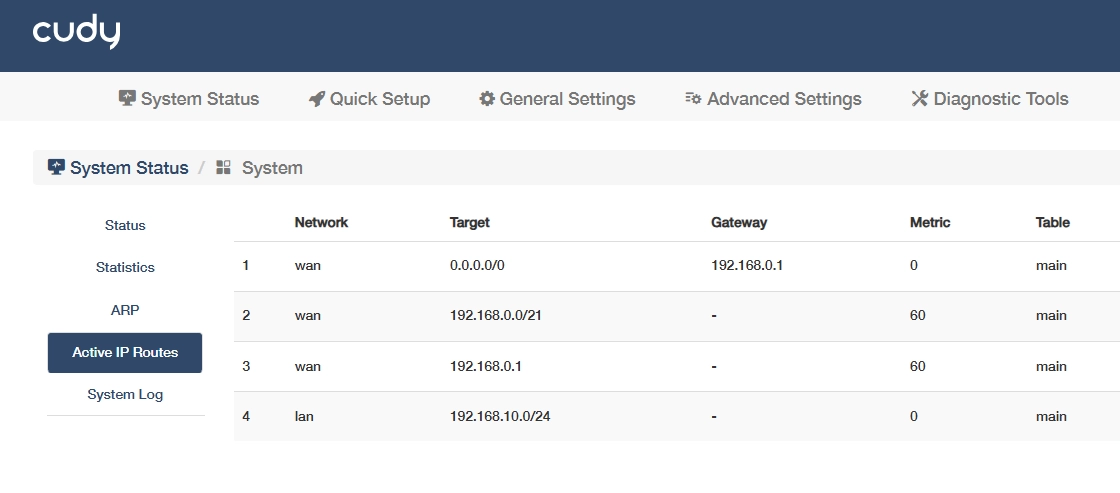
- Network/Target: Destination network address that the route applies to.
- Gateway: Next-hop IP address used to reach the target network.
- Metric: A numerical value indicating route priority (lower=preferred), calculated from hop count/bandwidth.
- Table: Routing table type where this route is stored.
-
System Log: Tracks all the router behaviors. When the router does not work normally, download the system log and send it to our Technical Support for troubleshooting.
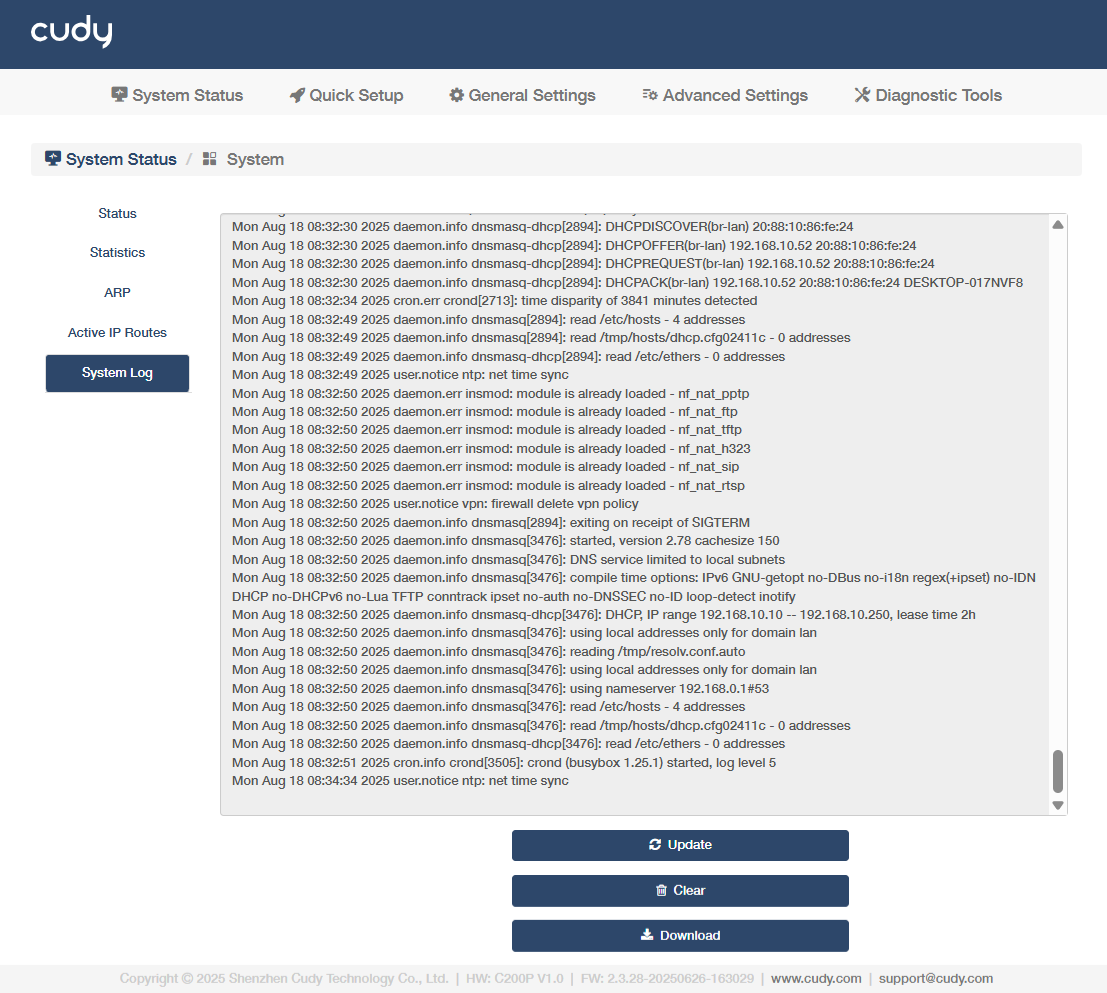
- Update: Click to refresh the system log.
- Clear: Click to erase all the system log up till now.
- Download: Click to download the system log for technical support.