Quick Installation Guide
Follow the instructions below to get your router ready for use fast and easy.
-
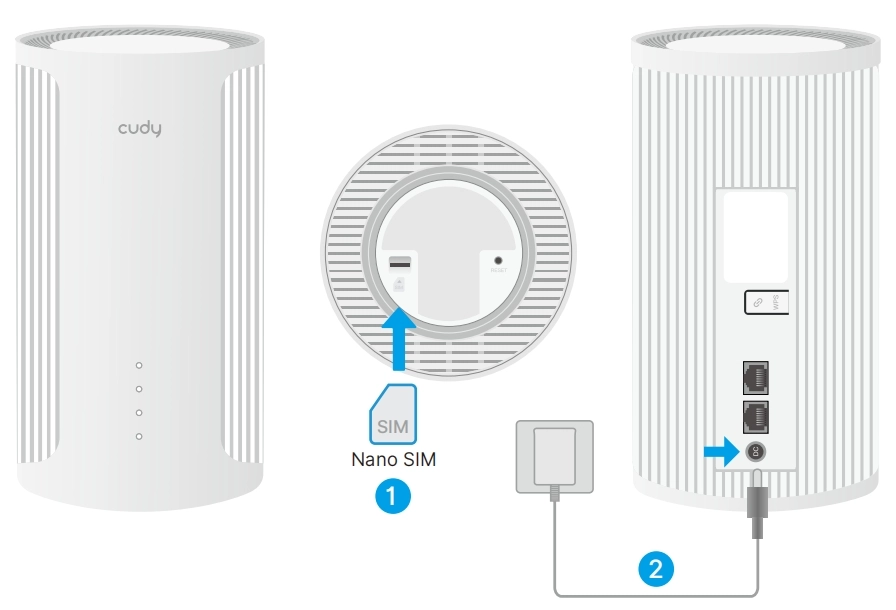
Insert your nano SlM card into the SIM slot (on the bottom) according to the engraved direction, until you hear a clicking sound.
-
Plug the power adapter to the router, and wait for 2~5 minutes until the system LED turns solid on.
-
Check the Internet LED.
- If the Internet LED is in yellow or white, the router is already connected to the cellular network.
- If the Internet LED is in red, please continue with the following steps to configure the router for Ethernet network.
-
Connect to the router through Wi-Fi or with an Ethernet cable.
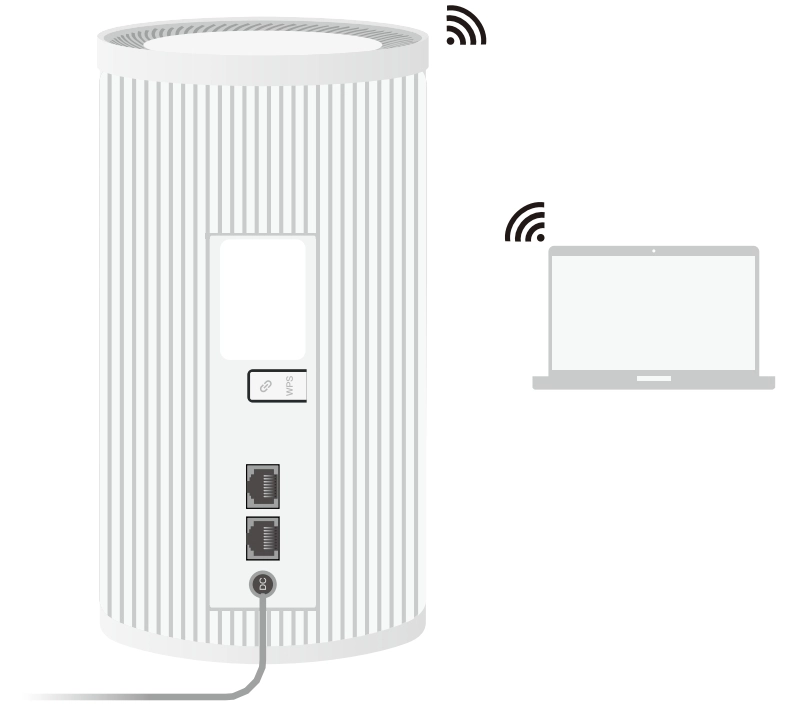
- Through WiFi: Connect your device to the router's Wi-Fi using the SSlD (network name) and Password printed on the bottom of the router.
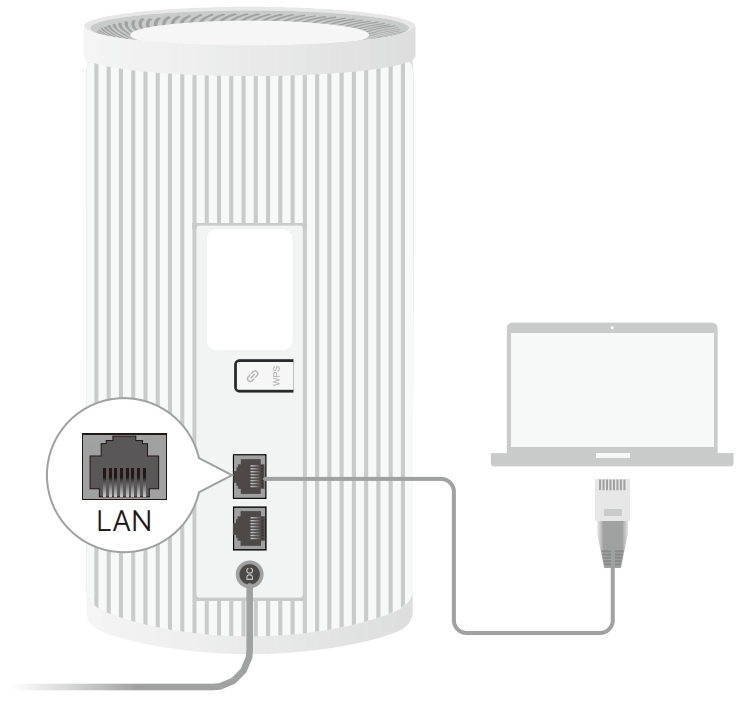
- With an Ethernet cable: Turn off the Wi-Fi on your device and connect it to the router's LAN port with an Ethernet cable.
- Through WiFi: Connect your device to the router's Wi-Fi using the SSlD (network name) and Password printed on the bottom of the router.
-
Launch a browser, enter cudy.net (or 192.168.10.1) in the address bar, and create an administrator password to log in.
-
Follow the step-by-step instructions to finish the Quick Setup.
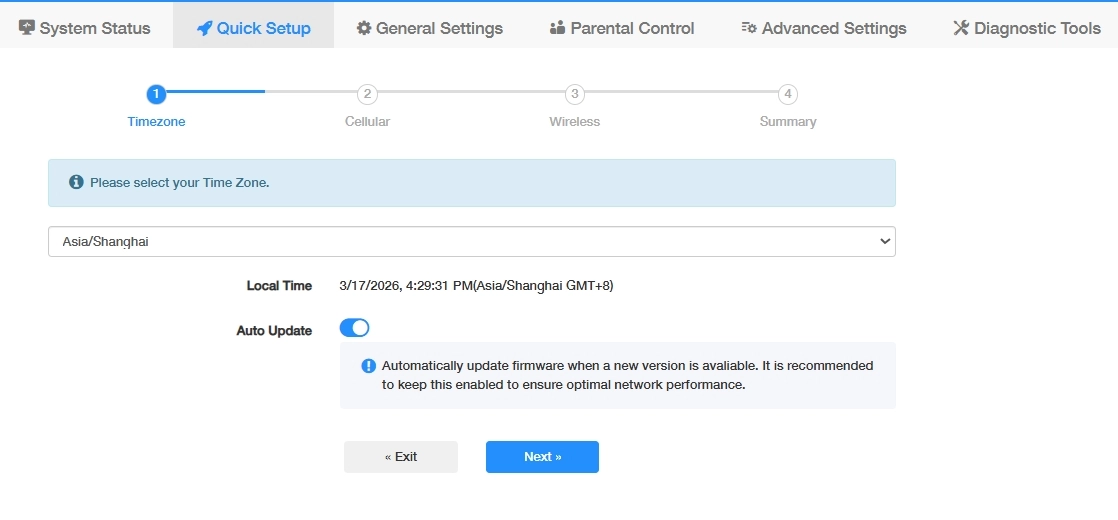
- Select your Time Zone. Click Next.
- Select your APN Profile (Auto recommended). For other options, check with your SIM card provider. Click Next.
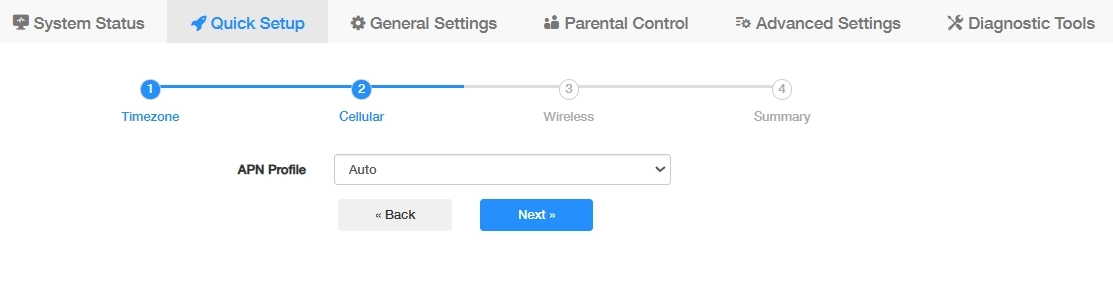
- Customize your 2.4G/5G Wireless SSID and password or just keep it as default. Click Next.
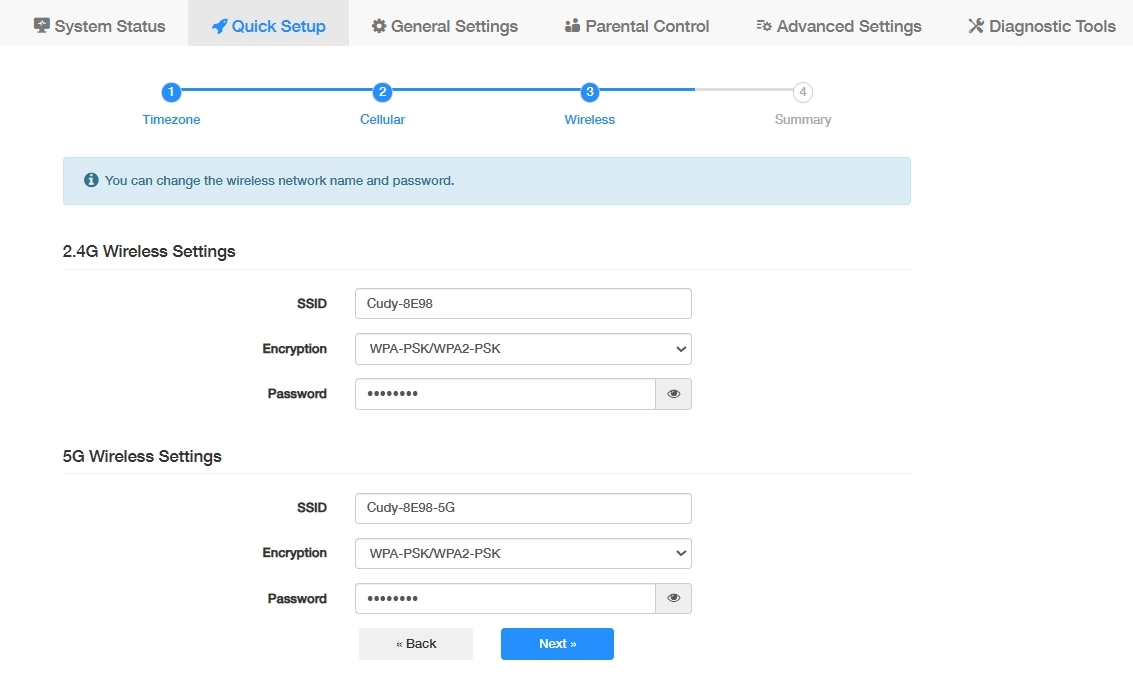
- Confirm your settings or click Back to make adjustments. Click Save and Apply.
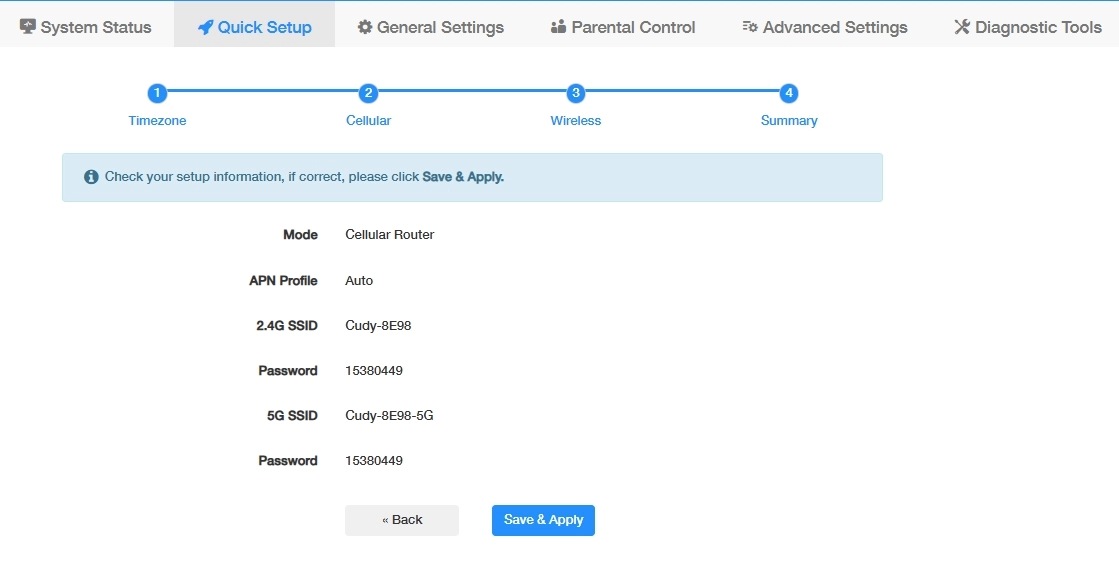
- Select your Time Zone. Click Next.
Note
- If the signal is still too weak indoors, try installing your extension antennas (not included in the box) to the SMA connector and placing the antennas outdoors.
- If a SIM blocked window pops up, please input your SIM PIN or contact your carrier for help.