Overview
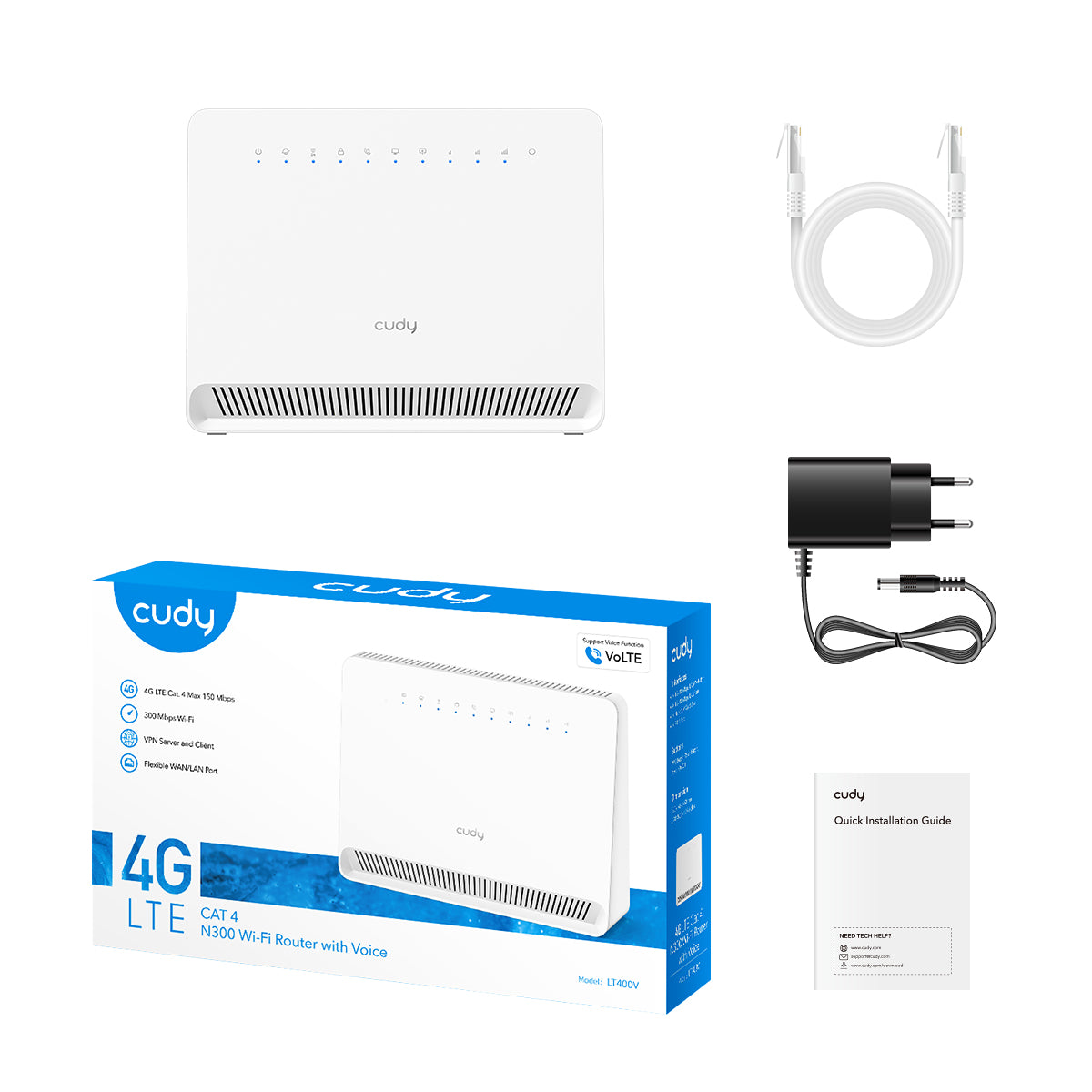
Package Content
Front Panel
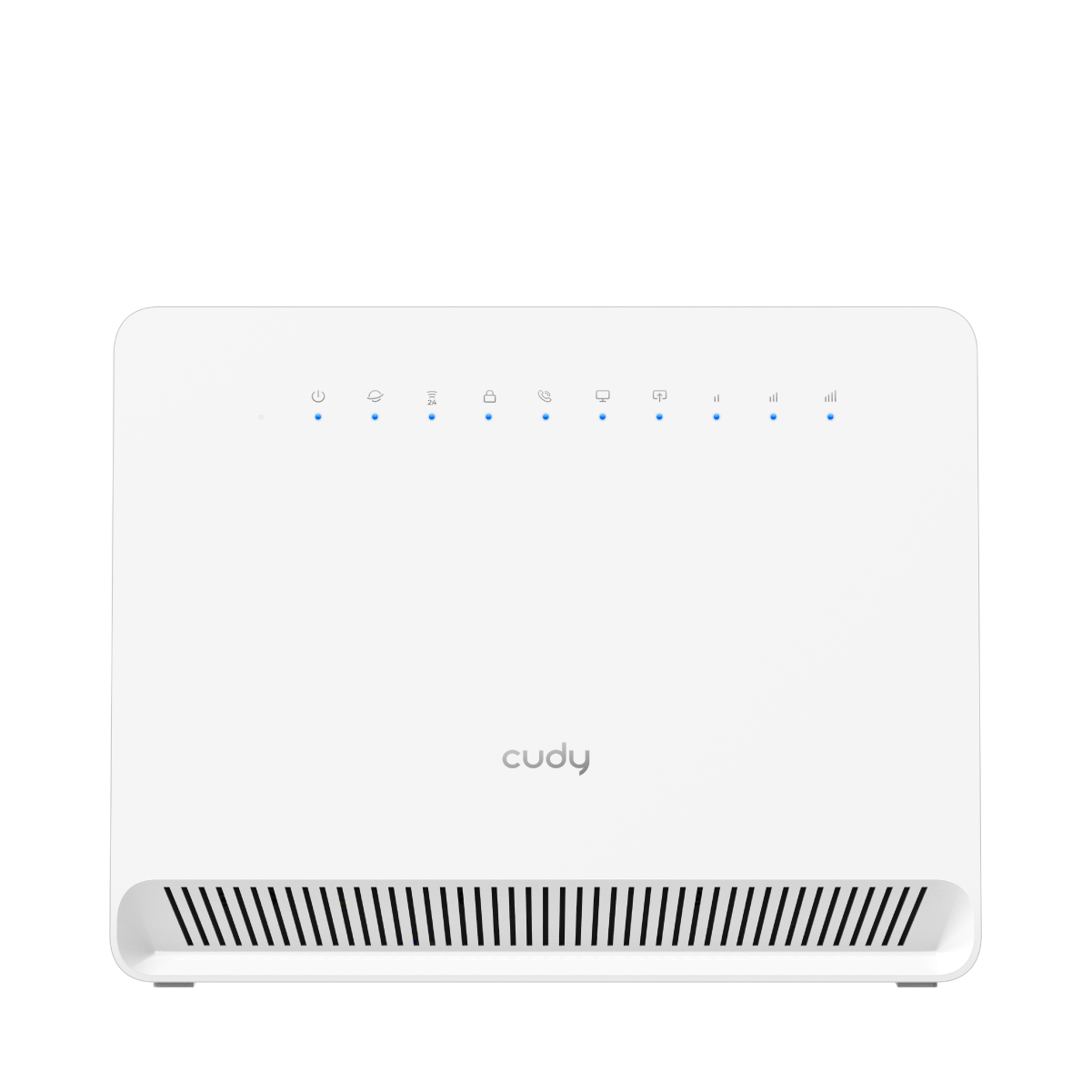
| LED | Status | Indication |
|---|---|---|
 (System) |
Off | Power is off. |
| Blink | System is initializing. | |
| On | System has started up successfully. | |
 (Internet) |
Off | No Internet available. |
| Blink | Connecting to the Internet. | |
| On | Internet is available. | |
 (2.4G Wireless) |
Off | 2.4G wireless network is disabled. |
| On | 2.4G wireless network is enabled. | |
 (WPS) |
Off | Not in the WPS process |
| Blink | In the WPS process | |
| On | When WPS is successful, it will light on for about 1 minute and then turn off. | |
 (Phone) |
Off | PHONE port is not connected. |
| On | PHONE port is connected, and a call is ringing or in process. | |
 (LAN) |
Off | There are no device(s) connected to the LAN1/2/3/4 port. |
| On | There are device(s) connected to the LAN1/2/3/4 port. | |
 (WAN) |
Off | LAN4/WAN port is switched to be WAN port, but it is not connected. |
| On | LAN4/WAN port is switched to be WAN port, and it is connected. | |
 (Signal Strength) |
Off | No signal. |
| 1st LED On | 2G/3G/4G signal is weak. | |
| 1st & 2nd LEDs On | 2G/3G/4G signal is medium. | |
| 3 LEDs On | 2G/3G/4G signal is strong. |
Back Panel
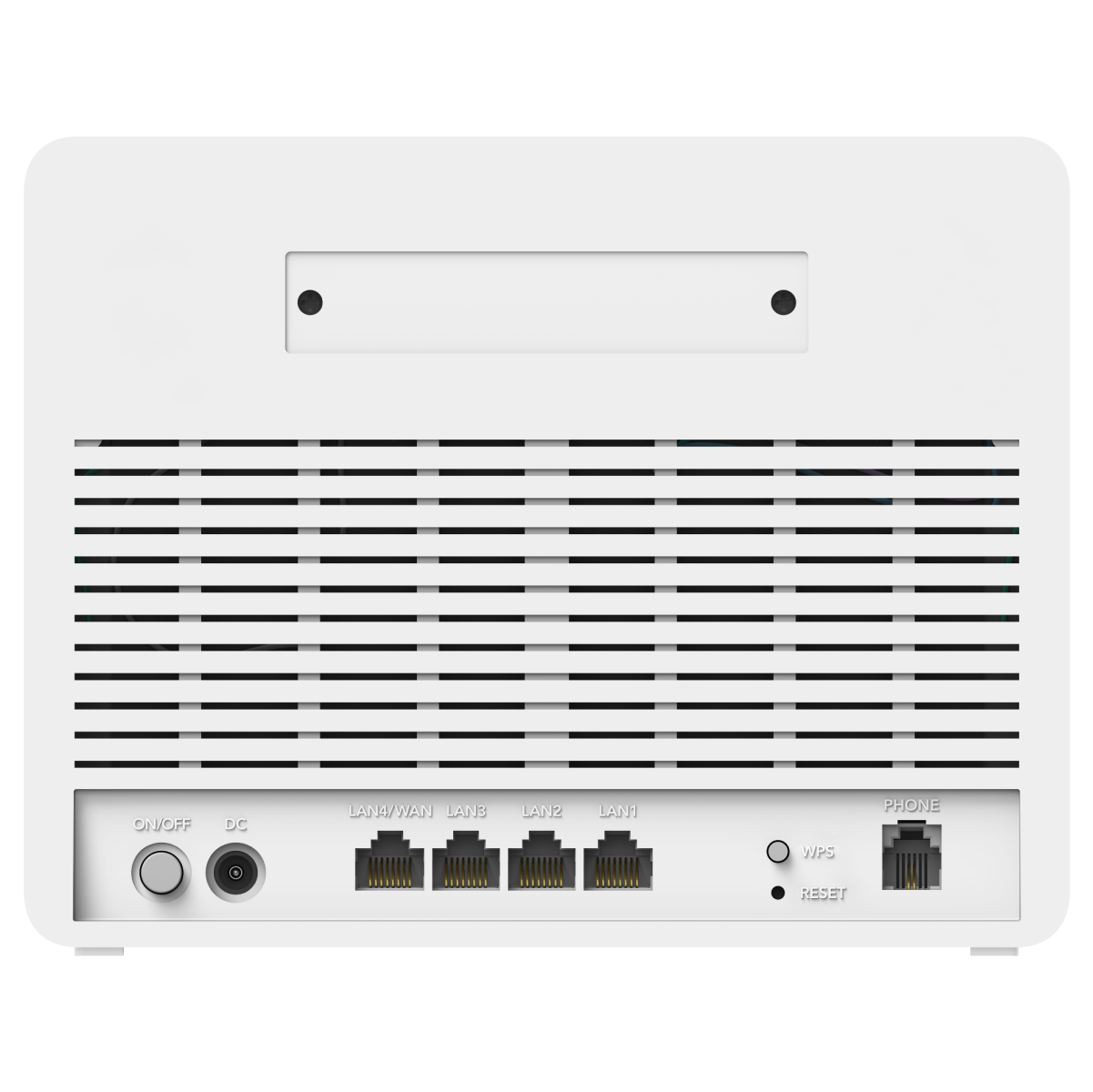
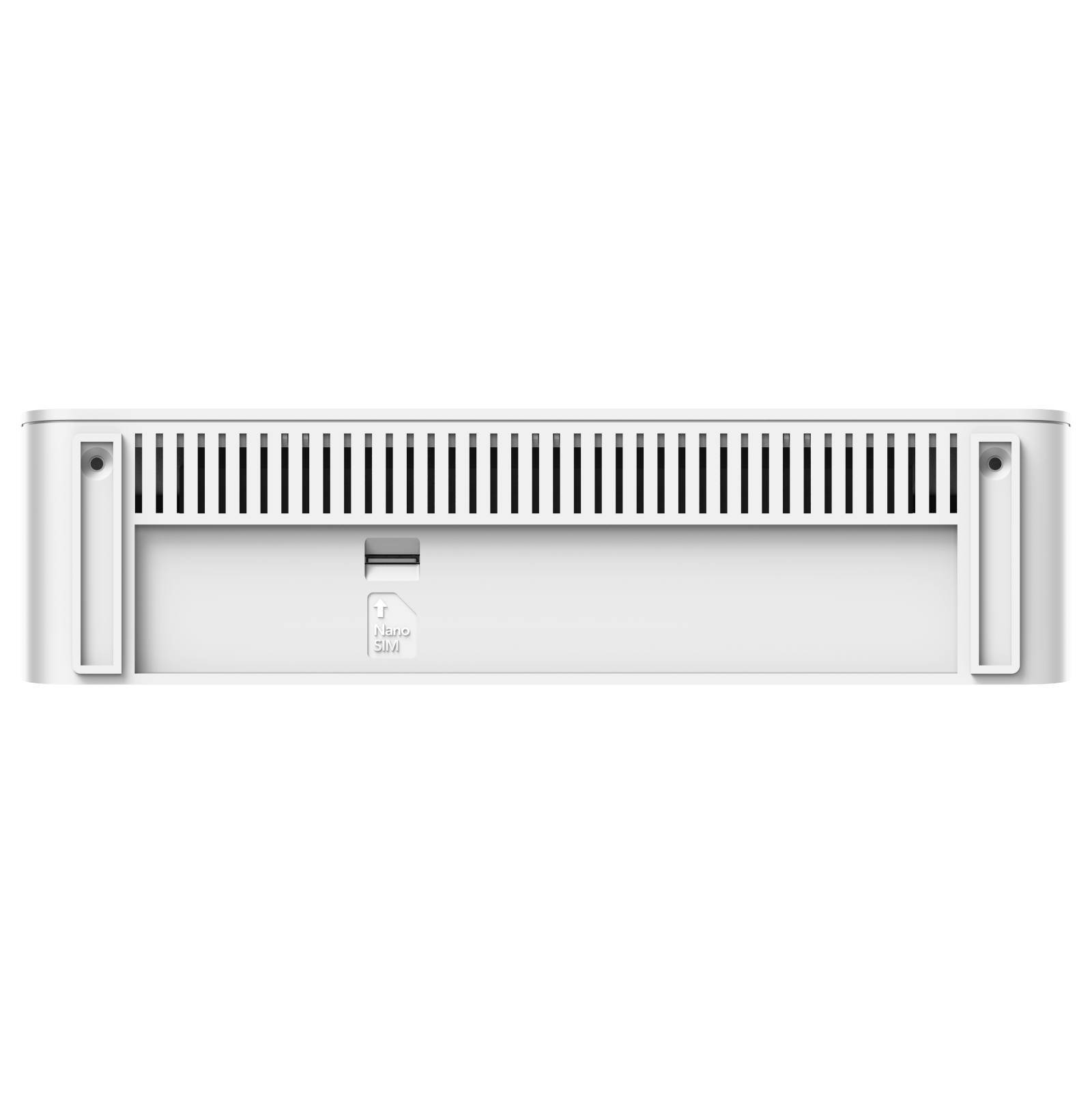
| Interface | Instruction |
|---|---|
| ON/OFF Button | Press to turn on or off the router. |
| DC Power Jack | Plug the provided power adapter to supply power. |
| LAN1/2/3 Port | Connect to an Ethernet device. |
| LAN4/WAN Port | Connect to the Internet or an Ethernet device. To switch between WAN and LAN, please log into the management webpage and go to Advanced Settings -> Network -> LAN/WAN Switch. |
| WPS Button | Press for 1 second to authorize WPS connection. |
| RESET Button | Press for 5 seconds to restore factory defaults. |
| PHONE Port | Connect to an analog telephone to make and receive calls. |
| Nano SIM Slot | Insert a nano SIM card to access the cellular network. |