Cellular
Go to System Status -> 5G -> More Details or General Settings -> Cellular page, you can configure the following cellular features.
APN
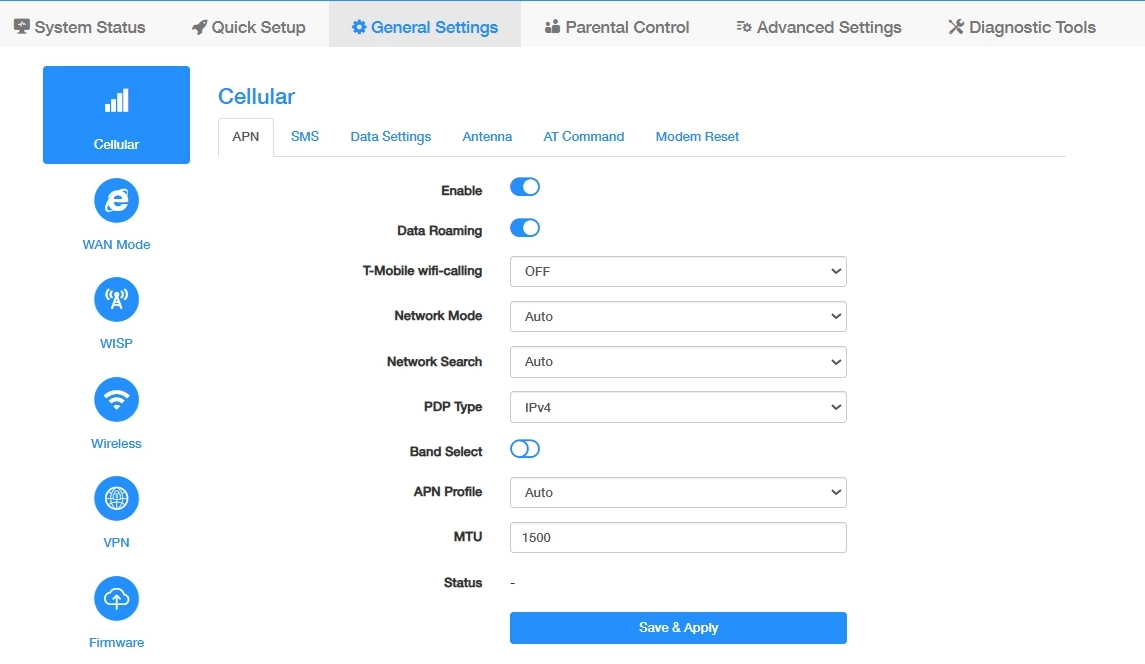
- Enable the APN feature.
- Enable the Data Roaming to allow your mobile device to connect to the Internet or use cellular data when outside your carrier’s network coverage area, often involving additional charges.
-
Select ON or OFF for T-Mobile wifi-calling.
- ON enables WiFi Calling (VoWiFi) for T-Mobile devices;
- OFF disables it.
-
Select a Network Mode of the router's cellular network.
- 4G Only: Connects to LTE networks only. Recommended in areas without 5G coverage or for improved stability.
- 5G-SA Only (Standalone): Connects only to 5G Standalone networks. Provides lower latency and advanced 5G features, but requires SA network support from your operator.
- 5G-NSA (Non-Standalone): Connects to 5G networks based on LTE (4G) anchoring. This is the most commonly deployed 5G mode and offers a balance of speed and coverage.
-
Auto: Automatically selects the best available network (4G, 5G-SA, or 5G-NSA). Recommended for most users.
💡 If 5G is unavailable or unstable in your area, selecting 4G Only may provide a more reliable connection.
-
Select a means of Network Search.
- Auto is for automatic scanning and connection.
- Manual requires a click on Network Search and selection of your SIM card carrier and network operator.
-
Select the PDP (Packet Data Protocol) Type that defines the protocol used for data transmission in mobile networks (e.g., IPv4 or IPv4/IPv6).
-
Enable Band Select to allow manual selection of specific frequency bands for network connectivity, useful for optimizing signal strength or compatibility.

- 5G Band: Select the 5G NR bands to be used. It is recommended to keep all bands enabled (Auto) for optimal performance. You may manually select specific bands if required by your network environment or operator.
-
LTE Band: Select the LTE bands to be used. Keeping all bands enabled (Auto) ensures better compatibility and stability. Manual selection can be used for troubleshooting or to lock onto specific bands.
💡 Incorrect band selection may result in no signal or unstable connection. If unsure, keep the default (Auto) settings.
-
Select a APN Profile to decide how the router connects to the mobile network.
- Auto: The router automatically detects and configures the correct APN settings based on the inserted SIM card. Recommended for most users, as it ensures seamless connectivity without manual configuration.
-
Manual: Allows you to manually configure APN settings such as APN Name, Username/Password, and Authentication Type. Use this mode only if your operator requires specific APN settings or if auto-detection fails.
💡 Incorrect APN settings may prevent the router from accessing the network. If unsure, leave the setting on Auto.
-
Enter the MTU value if required by your ISP. Default 1500 is recommended for optimal performance.
- Click Save & Apply to save and activate the new settings or changes. Status will display the current state of cellular network connectivity, Connected or Disconnected.
SMS
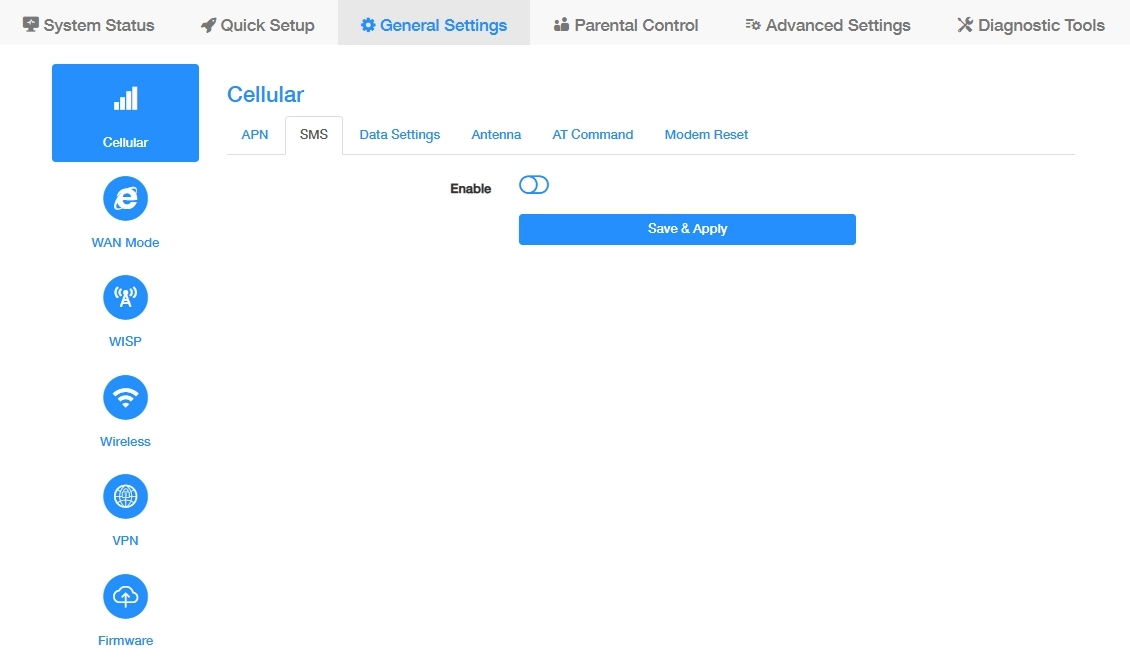
Click Enable and then Save & Apply to manage or monitor the router remotely by sending simple text commands or receiving automated alerts.
Data Settings
-
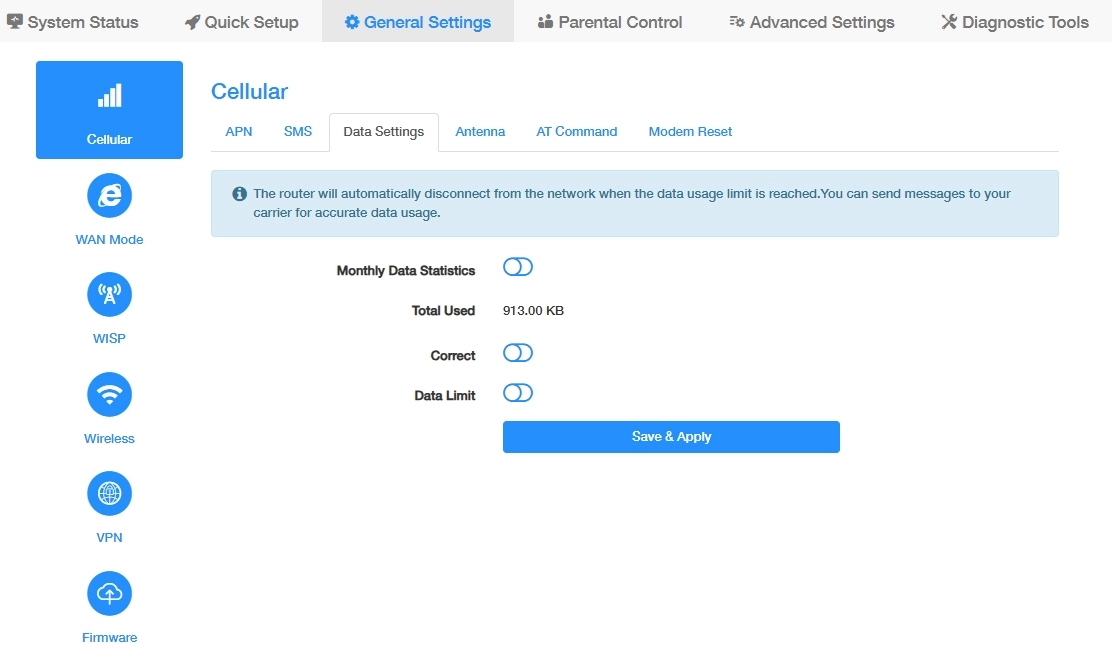
Enable Monthly Data Statistics to tracks total data usage within the current billing cycle. Set a Start Date to reset date for monthly data calculation.
-
Check Monthly Used or Total Used for the amount of data consumed in the current cycle. If necessary, enable Correct to manually adjust the inaccurate data usage records.
-
Enable Data Limit to set the maximum allowed data per month; triggers actions (e.g., shutdown) when exceeded.
- Set Monthly Allowance to limit the monthly total data allocated for the billing cycle (e.g., 10GB).
- Enable SMS Alert for Usage to get SMS notifications when data reaches predefined thresholds.
- Set the percentage-based triggers (e.g., 80%, 90%) as Usage Alert to activate alerts before reaching the data limit.
- Customize Usage Alert Message content, or keep the default warnings.
- Enter the recipient Phone Number for receiving usage alerts.
-
Click Save & Apply to save and activate the new settings or changes.
Antenna
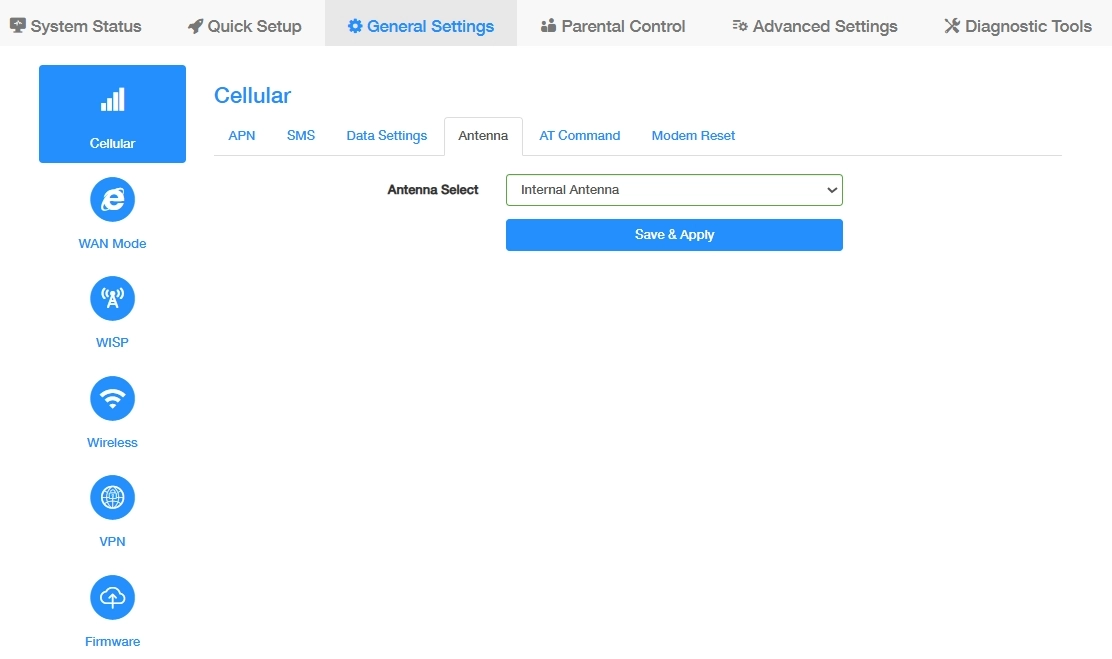
Select the type of antenna used for the cellular connection, and click Save & Apply.
-
Internal: Uses the built-in antennas of the router. Suitable for most setups where external antennas are not installed.
-
External: Enables the use of external antennas connected to the router. Recommended if:
- Cellular signal is weak in your location
- You want to improve 4G/5G reception or stability
- You have high-gain antennas installed
💡 Choose the antenna type that matches your hardware setup. Selecting External without physically connecting an antenna may reduce signal quality.
AT Command
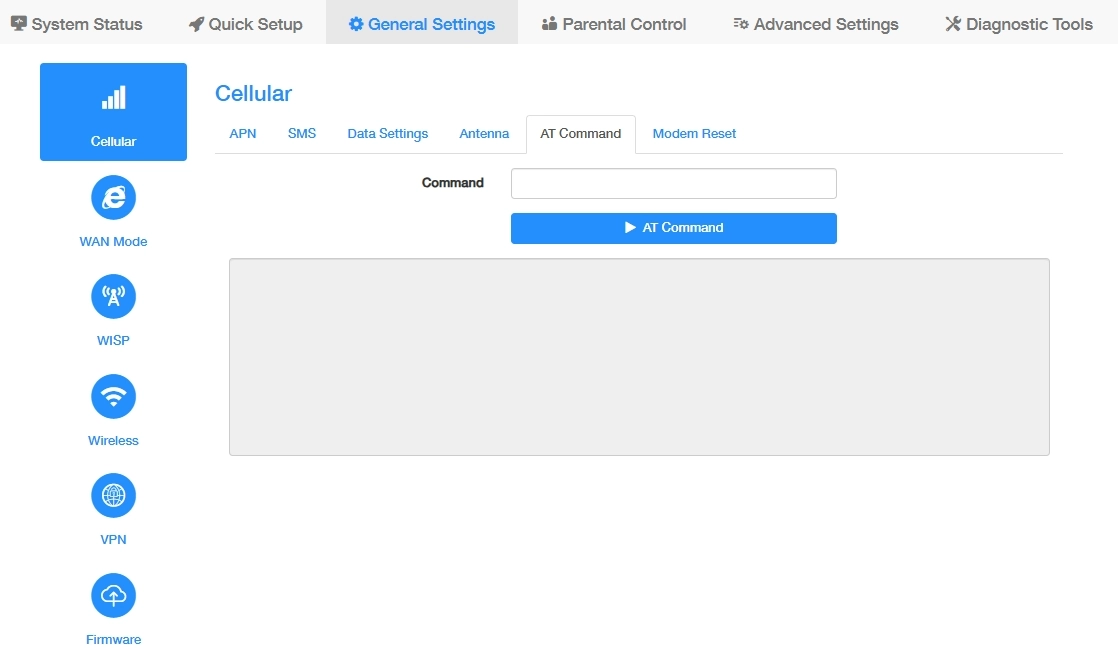
AT Commands are standardized text-based instructions (e.g., AT+CSQ) used to configure, diagnose, and control cellular modules (4G/5G) in industrial routers, enabling APN setup, signal checks, and data management.
Modem Reset
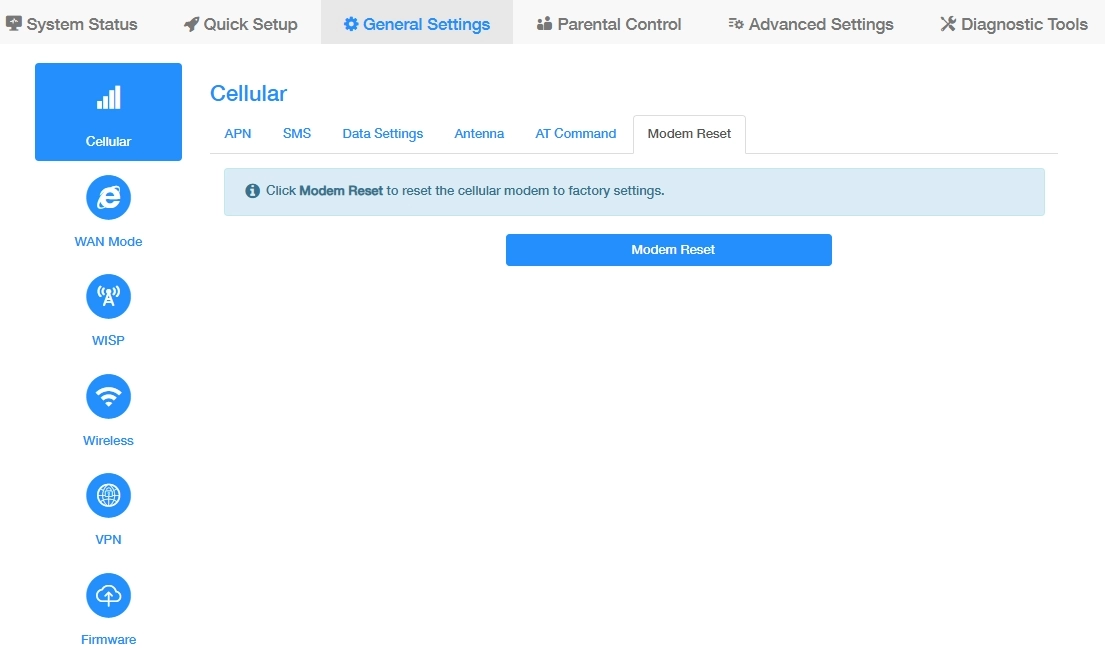
Click Modem Reset to reset the cellular modules (4G/5G) to factory settings, which may help to restore connectivity during network failures or configuration errors.